After you log in to the Entire Operations Web Client, the Entire Operations home page is displayed:
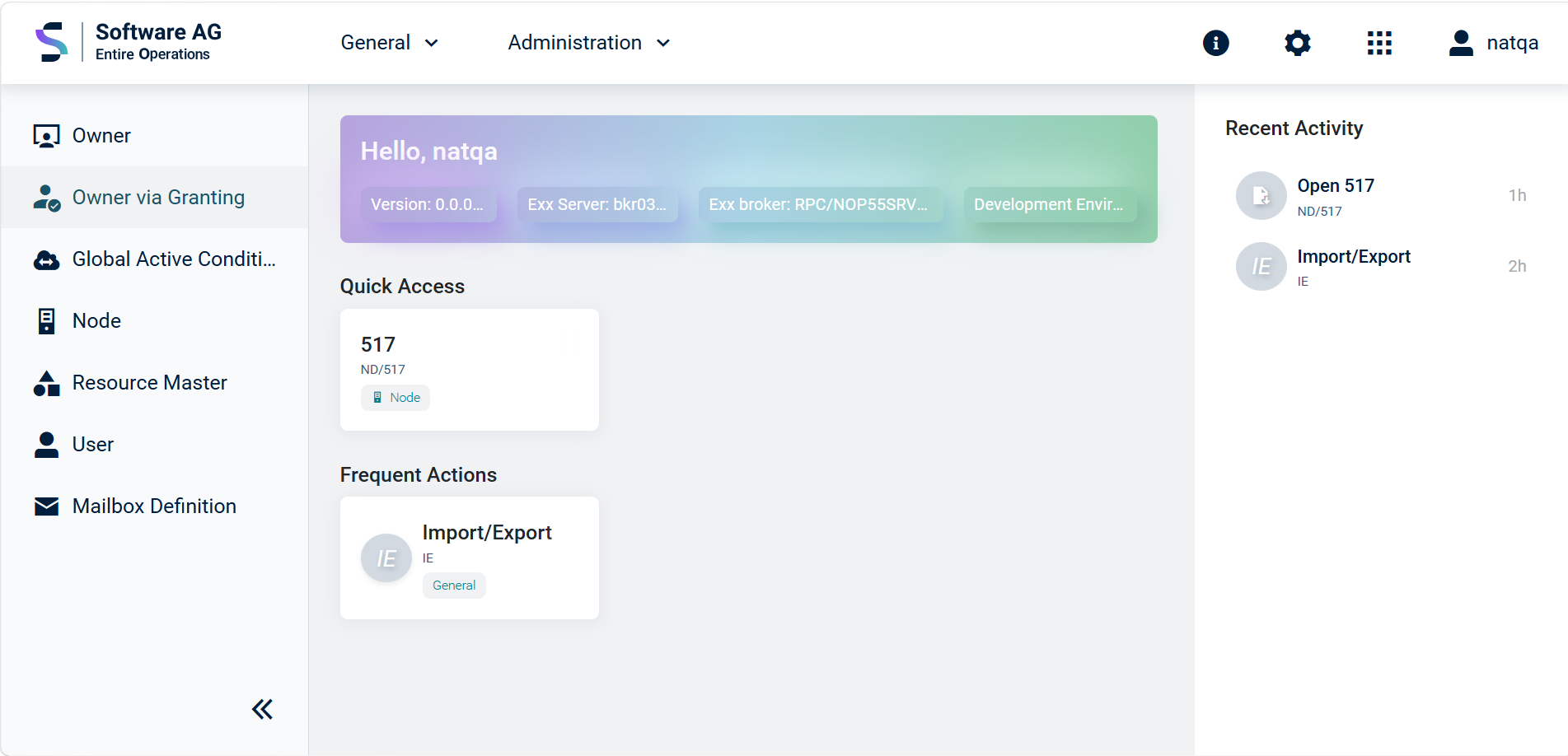
This document describes the elements of an Entire Operations home page and covers the following topics:
This section describes the Title bar which provides quick access to functions and settings of Entire Operations. The following topics are covered:
Name of the product. To get further system information, such as on version information of clients or servers, refer to Show system information.
This menu contains various general functions
For futher information, refer to Functions of the Metanode General.
This menu contains functions to be used by system administrators only. For detailed information, refer to Accessing Administration Functions in the Administration documentation.
Tab placeholder provides license information.
Tab placeholder provides information on the system log and various functions.
placeholder
Next to symbol
 the current user name
is shown.
the current user name
is shown.
If you click the symbol, the following menu is displayed:
| Function | Explanation |
|---|---|
| Sign out | The current user is logged off.
The tab Entire Operations
log in appears in which you can
enter credentials.
You can log in again with different credentials and a user language. or: You can terminate Entire Operations by choosing . |
The user language can be selected during Starting an Entire Operations session.
To change the user language, terminate your current session and change the language settings as described in Starting and Ending an Entire Operations Session.
A tooltip is a pop-up window with a short message that is available for a specific element such as a title, a button or a symbol. By hovering over an element, the message specific to that element is displayed.
Below the title bar a welcome message is displayed: Hello, user name, where "user name" equals the current user's user ID. Below, you will find technical information on the current connection:

| Version | Version number of the Entire Operations Web Client software being used. |
| Exx Server | EntireX Server being used. |
| Exx Broker | EntireX Broker being used. |
| Development Environment | Environment being used such as development, test, production. |
This area is not needed as you continue using the interface and will be completely covered by the Workspaces used.
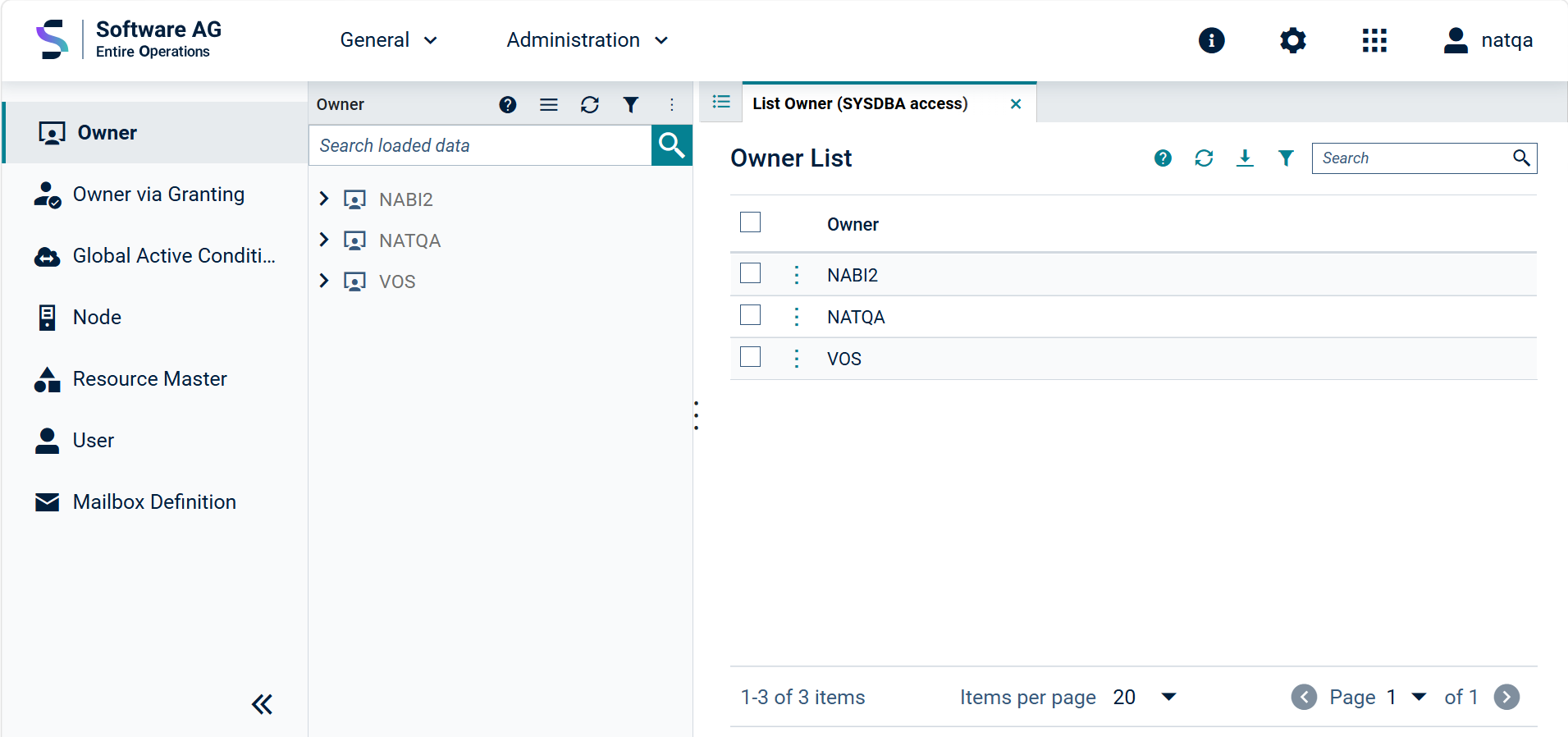
The home page contains the object workspace on the left, featuring a tree structure menu for selecting one of the application's business objects to be maintained. The area on the right site is covered by the content pane. It is used to display the object's content retrieved by a processing function. A typical processing function enables actions such as listing all objects of a type, creating a new object, displaying, modifying, or deleting a single object.
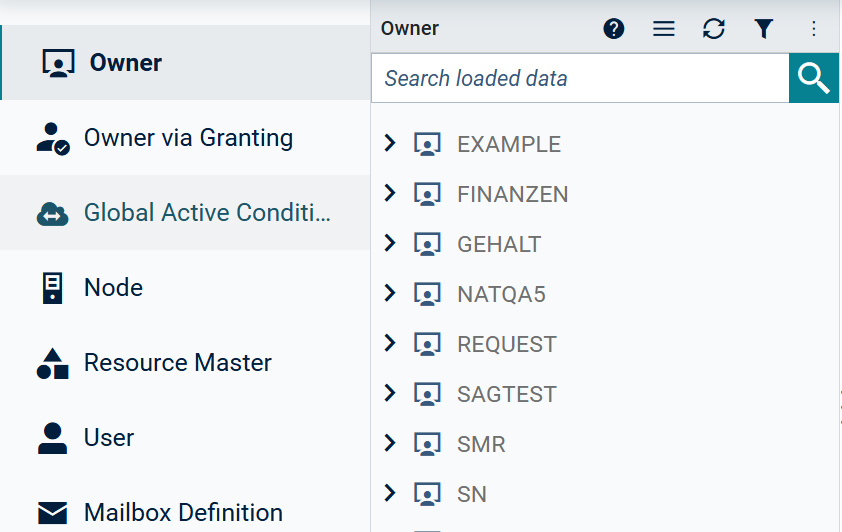
The tile on the left side of the Object Workspace contains the Main menu for selecting the application's key business object types:
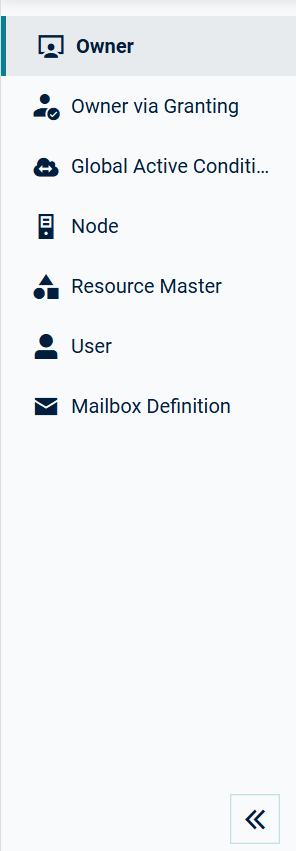
To save space, you can collapse the text column containing the object names in the main menu.
 To show or hide the text column for the entries in the main menu:
Click the backward arrow symbol
( ).
).
The column containing the text entries will be collapsed.
To select an object, you can then choose one of the remaining symbols.
Note that the meaning of a symbol is explained by a tooltip, for example
for the owner symbol ( ).
See also Tooltips.
).
See also Tooltips.
Click the forward arrow symbol
( ) and
the column containing the text entries will be displayed again.
) and
the column containing the text entries will be displayed again.
To use the tree menu to maintain an instance of an object:
Choose an object in the main menu, for example Owner.
A list of the existing instances for the "Owner" object is displayed in the column next:
To expand an entry in the directory tree:
Click the arrow symbol
( )
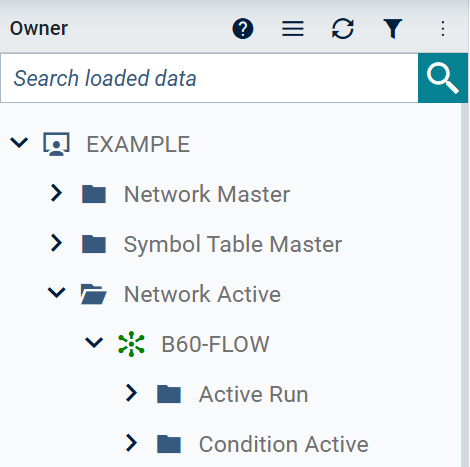
preceding an entry, for example the owner EXAMPLE.
)
preceding an entry, for example the owner EXAMPLE.
The column below displays a list of the definitions available for this owner (Network, Symbol Tables, Active Networks, Schedule, Calendar).
To give an example on how to expand the list with additional entries,
click the arrow symbol () preceding
and then repeat this procedure for
:
You can adjust the width of the expanded column to adjust the length of the menu items.
To move a separating line:
To change the size of the area, move the mouse pointer over the
separating line between the two areas until
the pointer changes shape and  pointing in opposite directions
appear.
pointing in opposite directions
appear.
To collapse a directory entry:
Click  in front of the relevant entry.
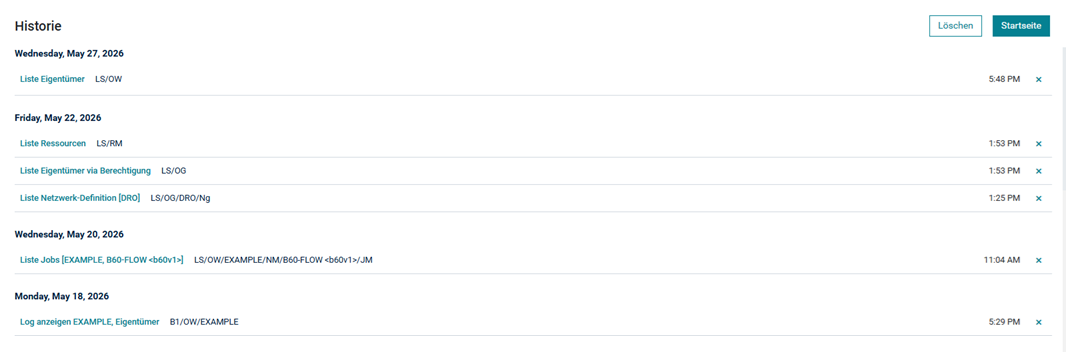
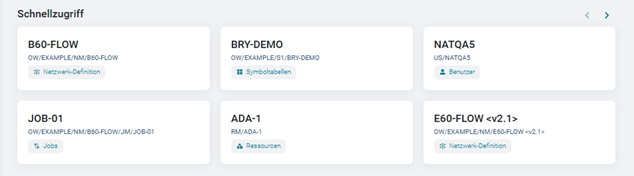
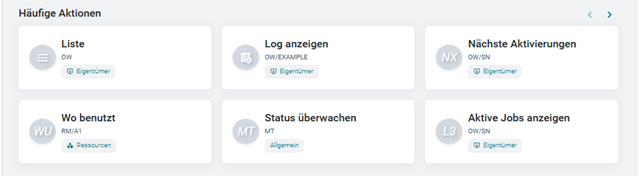
The Entire Operations home page provides sections which give an overview of your history and quick access to the functions you have used recently:
Quick access | Frequent actions | Recent activity Show all activities (history)
Example:
Example:
Example:
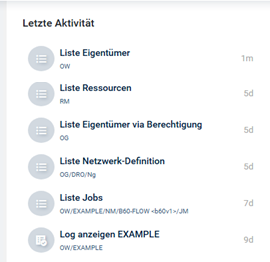
Example: