
 To start an Entire Operations session:
Start your web browser and enter the following into the address bar:
https://war-file-name/now_tomcat/NOPWEB_Login
where war-file-name is an arbitrary name that was set during the installation.
The website with the Entire Operations login dialog is displayed.
In the box at the top right of the page, the current user language is displayed. By default, this is the language that is set in the browser, for example English.
To switch to German, click the arrow down symbol ( ) and choose
German.
) and choose
German.
The Login screen is displayed in the user language you have chosen.
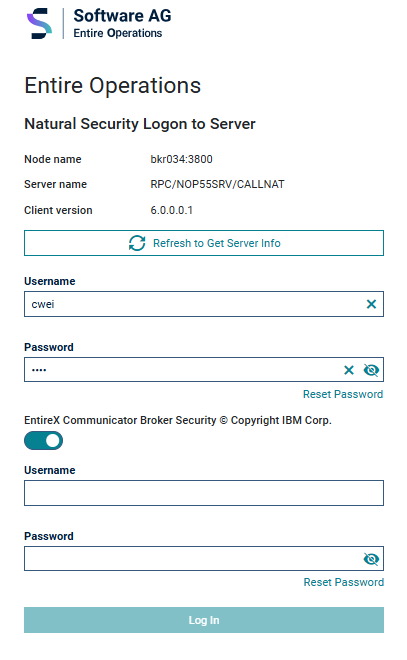
Enter your login details:
Username
Mandatory. User ID for Natural Security.
Password
Mandatory. Password for Natural Security.
EntireX Communicator Broker Security © Copyright IBM
Corp.
Optional: User ID for EntireX Broker
Security.
Activate the button ( )
to enter your credentials in Username
and Password.
)
to enter your credentials in Username
and Password.
Notes on submitting the password:
By default, the password is not displayed.
By clicking the visibility off symbol
( ) the password is displayed. By clicking again, the display of the password is
being suppressed again.
) the password is displayed. By clicking again, the display of the password is
being suppressed again.
If necessary, choose to change your password or Reset Password.
Choose to confirm your input.
The home page appears. The user language is English.
For further information, please refer to home page in chapter Elements of the User Interface .
To terminate an Entire Operations session, choose the user symbol
( )
in the right site of the title bar. Note that
user-id is a placeholder for the user ID of the current Entire
Operations user.
)
in the right site of the title bar. Note that
user-id is a placeholder for the user ID of the current Entire
Operations user.
Choose Logout.
After the logout, the Login screen is displayed again.