
This document covers the following topics:
Default Configuration of the Adabas REST Server After Installation
Default Authentication Mode of the Adabas REST Server After Installation
Port Number for Adabas Manager Host Connection to the Adabas REST Server
Authentication Configuration for Adabas Manager Host Connection to the Adabas REST Server
Configuring the REST Server to use Adabas Manager Login Credentials
Configuring the Adabas REST Server to use Different Login Credentials
Adabas Manager accepts log-ins from the following:
Operating system (e.g. Windows) local user
LDAP domain user
If the username of local user and LDAP user are identical, then the local user credentials take precedence.
For further information about Adabas REST Server connection authentication using its default authentication mode, refer to Adabas Rest Administration, Installation and First Steps for the Adabas REST Server default login credentials.
The default configuration of the REST server can be found in config.default.xml file.
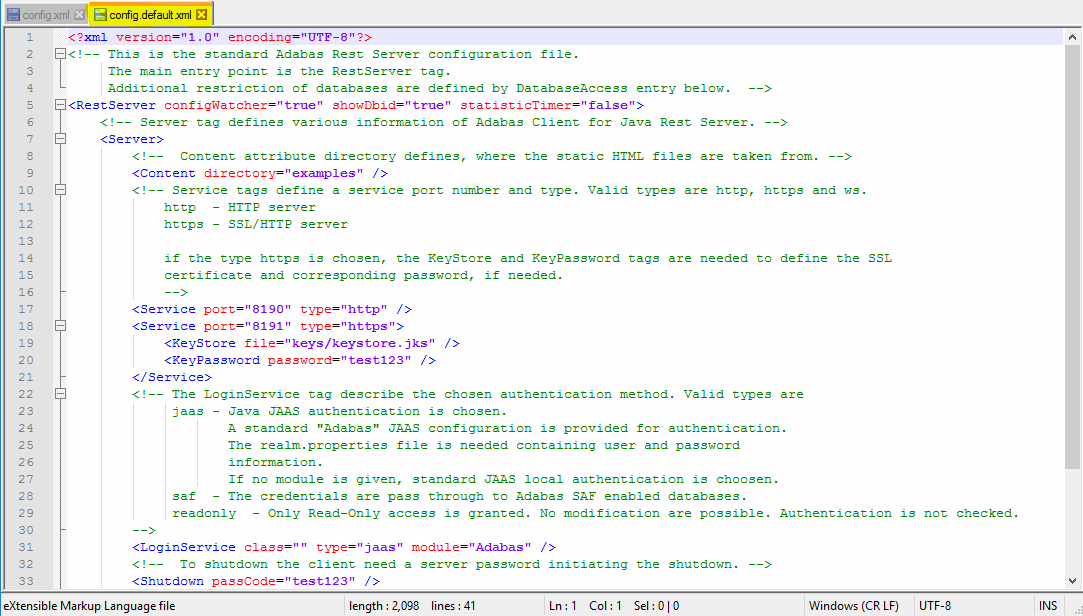
Adabas REST Server uses Java JAAS with the standard "Adabas" configuration as its default
authentication mode (see the XML tag <LoginService...>
in the config.xml file located in the Adabas REST Server installation
configuration directory). By default it is <LoginService class=""
module="Adabas" type="jaas"/>. It authenticates the Adabas REST Server
login credentials (including the Adabas REST Server post-installation default login
credentials) contained in the realm.properties file located in the
same Adabas REST Server installation configuration directory. The authentication mode can
be changed by adapting the server module of the
<LoginService...> in the
config.xml file. Refer to Adabas Rest
Administration, Authentication for further
information.
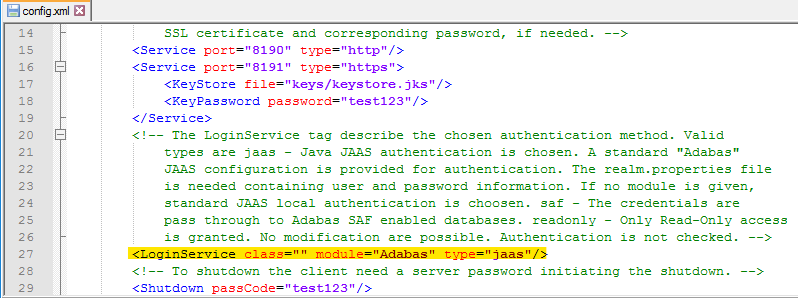
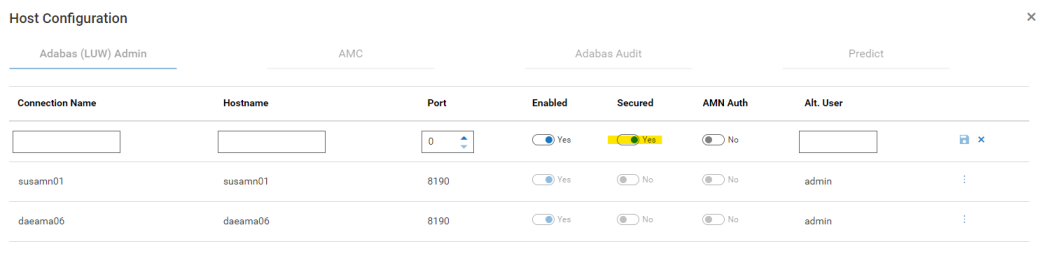
Use the Adabas REST Server default port (assigned during Adabas REST Server installation), which is port 8190 for connection via HTTP, or port 8191 for a secured connection via HTTPS. The port is evaluated in the config.xml file located in the Adabas REST Server installation configuration directory.
Select the Secured Connection (via HTTPS) check box if you want to use a secured connection via HTTPS to the Adabas REST Server.
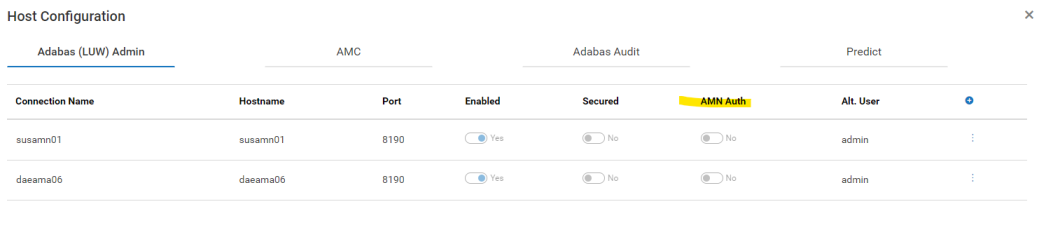
To connect to the REST Server using Adabas Manager credentials turn the switch AMN Auth to Yes.
To connect to the REST Server using Adabas REST Server credentials and its default authentication mode turn the AMN Auth switch to No and specify the Adabas REST Server user name in the field Alt. User.
 To configure the REST server to use Adabas Manager login credentials
Follow the steps below if you select Use Adabas Manager login credentials and use LDAP domain user credentials:
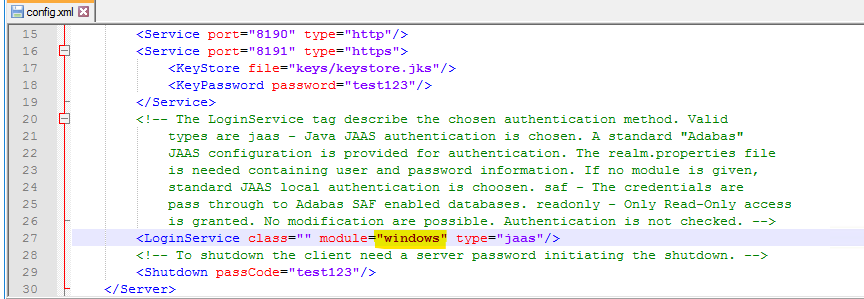
Go to the Adabas REST Server installation directory <installation directory>\AdabasRestAdministration\configuration.
Open the file config.xml and search for the XML tag
<LoginService...>.
Edit the value of module to module="windows" (for
Windows).
Note
The module name is case sensitive and must match the module name defined in
the security.conf file located in the same directory
Save the edited version of config.xml.
If you select Use Adabas Manager login credentials and use OS local user credentials, see Configuring the Adabas REST Server to use Different Login Credentials
If local and domain user names are identical, the local user name authentication takes precedence.
To configure the Adabas REST server to use different login credentials (other than its
default login credentials and LDAP domain user)
Go to the Adabas REST Server installation directory (<installation directory>\AdabasRestAdministration\bin).
Run the command service.bat(sh) add_user. You will be prompted to enter the user name and password for that new user.
Restart the Adabas REST Server by running the command service.bat/sh stop/start or sudo system_service.sh stop/start from <installation directory>\AdabasRestAdministration\bin.