
Natural ISPF provides a macro feature that allows you to use the Natural language to generate text of any kind. In a process known as macro expansion, text is generated, which can consist of substituting variables, repeating blocks, generating blocks conditionally, even performing screen or file I/Os.
The macro feature is useful when you are creating different sources, all of the same structure but with different content. The macro feature thus supports you in editing programs and other sources, offering many uses within Natural ISPF.
This document describes macro syntax and the objects in which the macro feature can be used, including some examples. It covers the following topics:
The macro feature is an extension of the Natural language and consists of two types of statement, identified in the source by the macro character (in the given examples, the paragraph sign (§) is used). These statements are:
Executed during macro expansion; these statements must be preceded by the macro character followed by a blank. The full Natural language is available for processing statements. You can work in either structured or report mode as normal.
0010 § MOVE 'PERSONNEL' TO #FILE-NAME (A32)
0020 § MOVE 'NAME'       TO #KEY      (A32)
Copied to the generated output of the macro; text lines can contain variables that are substituted by their current values during macro expansion. Variables in text lines are identified by the macro character, for example:
0030 READ §#FILE-NAME BY §#KEY
0040 WRITE 'RECORD READ'
Variables can also be used as part of names. To concatenate a variable value with the rest of the name during macro expansion, you must use the vertical line as concatenation character ( | ).
Note
If your keyboard does not have the vertical line, use the character that has
hexadecimal value 4F.
For example, using the values in the examples above, the line:
0030 FIND §#FILE-NAME|-VIEW BY §#KEY
generates the following text:
0030 FIND PERSONNEL-VIEW BY NAME
Note
The concatenation character need only be typed after the macro variable, and
need not be typed before a variable to be substituted after a concatenated
string.
For example, the JCL line:
0040 // DD DSN=§#DSNIN|(§#MEMBER|)
generates the following text using current variable values:
0040 // DD DSN=ISP.COMN.DATA(ISPJCL)
In this example, the concatenation character is used to concatenate the parentheses.
If the macro character itself is to appear in the macro output, you must write a double macro character in the source.
For example, the following line:
0010 * this macro uses the §§ char as macro char.
generates the following text:
0010 * this macro uses the § char as macro char.
The source lines:
§ MOVE 'PERSONNEL' TO #FILE-NAME (A32)
§ MOVE 'NAME'      TO #KEY       (A32)
READ §#FILE-NAME BY §#KEY
WRITE 'RECORD READ' §#KEY
produce the following output text:
READ PERSONNEL BY NAME
WRITE 'RECORD READ' NAME
The following source lines generate a Natural data definition:
§ DEFINE DATA LOCAL
§ 1 #FIELD    (A32/5) INIT <'MAKE','MODEL','COLOR'>
§ 1 #I        (N2)
§ END-DEFINE
§ *
DEFINE DATA LOCAL
1 AUTOMOBILES-VIEW
§ FOR #I = 1 TO 5
§ IF #FIELD(#I) = ' ' ESCAPE BOTTOM END-IF
2 §#FIELD(#I)
§ END-FOR
END-DEFINE
The following text lines are produced:
DEFINE DATA LOCAL
1 AUTOMOBILES-VIEW
2 MAKE
2 MODEL
2 COLOR
END-DEFINE
The following source lines prompt you for a member name:
§ RESET #MEMBER(A8)
§ INPUT #MEMBER
//§*INIT-USER|A JOB
//ASM EXEC ASMM,MEM=§#MEMBER
The resulting output text using input member name EDRBPM is:
//MBEA JOB
//ASM EXEC ASMM,MEM=EDRBPM
The following source lines read the first three records from the PERSONNEL
file, and if the persons are male, addresses them with a specified text:
§ READ(3) PERSONNEL BY NAME STARTING FROM 'A'
§ IF SEX ='M' DO
DEAR MR. §NAME
CONGRATULATIONS....
§ DOEND
§ LOOP
The resulting output text reads as follows:
DEAR MR. ALCOCK
CONGRATULATIONS....
DEAR MR. ALLAN
CONGRATULATIONS....
DEAR MR. AZOVEDA
CONGRATULATIONS....
Examples 2 and 4 above contain a macro text line which makes generation of text dependent on a specific condition:
§ IF #FIELD(#I) = ' ' ESCAPE BOTTOM END-IF    in example 2, and
§ IF SEX='M' DO                               in example 4
You can use the macro feature in Natural ISPF in any of the following ways:
In a special Natural object called a macro object. Macro objects reside in Natural
libraries and can be accessed as any other Natural object (specify
TYPE=MACRO). Macro expansion is performed when the macro is executed;
the macro output can be accessed for further handling in the user workpool facility.
Additionally, macro objects can be referenced from various places within Natural ISPF.
Inline macros in other sources (for example, PDS members or Natural programs). The macros are executed as a result of certain function commands. The actual function is performed on the macro output, which can be seen as an intermediate file and is also written to the user workpool.
The following subsections describe each possibility in detail.
You can access and maintain macro objects as any other Natural object if you specify
TYPE=MACRO (see the subsection Natural Objects in the section Common
Objects in the Natural ISPF User's Guide). However,
please note the following when maintaining macro objects using the Editor:
You must not use the END statement in macro objects;
The CHECK command checks the processing statements and
variables to be substituted in macro expansion for correct Natural syntax;
Note
The CHECK command does not check that the text
resulting from macro expansion is a valid Natural source. To do this, execute the
macro object and store the resulting output from the user workpool as a Natural
program (see the subsection User
Workpool in the section Common Objects in
the Natural ISPF User's Guide).
The CATALOG and STOW commands
compile the macro and create the "compiled" macro.
You can RUN a macro source, and use compiled macro objects
in any of the following ways:
EXECUTE a macro;
Issue the COPY or SUBMIT
function command for a macro;
Use the Edit macro feature;
Reference a macro from another object using the INCLUDE-MACRO
statement;
Execute a macro from applications outside of Natural ISPF;
PLAY a macro to generate and execute a command script.
These uses are explained in the following subsections. Use of the
INCLUDE-MACRO statement is described in the subsection Inline Macros.
When you issue the RUN command for a macro object, the macro
source is executed, and the resulting output is written to the user workpool.
When you issue the EXECUTE command for a macro object, the
compiled macro is executed, and the resulting output is written to the user workpool. If
you are executing the macro from an application outside of Natural ISPF, the output is
written to the source area (see also the subsection Using Macro
Objects in other Natural Applications).
The output of a macro object appears in the user workpool under the name of the macro and can be edited and saved (see the subsection User Workpool in the section Common Objects in the Natural ISPF User's Guide).
The following are two examples of macro objects. The first illustrates the use of variables to generate a Natural program, the second to generate job control lines.
This macro generates a part of a Natural program, which reads a specified number of records from a file in a logical sequence and displays the descriptor value and some other fields on the screen.
Macro definition:
§ DEFINE DATA LOCAL
§ 1 #FILE-NAME(A32)
§ 1 #KEY      (A32)
§ 1 #FIELD    (A32/5)
§ 1 #I        (N3)
§ END-DEFINE
§ *
§ SET CONTROL 'WL60C13B05/05F'
§ INPUT(AD=MIT'_') ' DISPLAY RECORD IN A FILE'
§     / ' FILE NAME  : ' #FILE-NAME
§     / ' KEY FIELD  : ' #KEY
§     / ' FIELD      : ' #FIELD(1)
§     / '            : ' #FIELD(2)
§     / '            : ' #FIELD(3)
§     / '            : ' #FIELD(4)
§     / '            : ' #FIELD(5)
READ(1) §#FILE-NAME!-VIEW BY §#KEY STARTING FROM  #VALUE
INPUT '§#KEY : '  20T ' ' §#KEY (AD=OI)
§ FOR #I = 1 TO 5
§ IF #FIELD(#I) = ' ' ESCAPE BOTTOM END-IF
 / ' §#FIELD(#I) : ' 20T ' ' §#FIELD(#I) (AD=MI)
§ END-FOR
END-READ
If you issue a RUN command from your Natural edit session,
the macro is executed and you are prompted for input of the following fields:
+--------------------------------------------------------+ ! ! ! DISPLAY RECORD IN A FILE ! ! FILE NAME : ________________________________ ! ! KEY FIELD : ________________________________ ! ! FIELD : ________________________________ ! ! : ________________________________ ! ! : ________________________________ ! ! : ________________________________ ! ! : ________________________________ ! ! ! ! ! +--------------------------------------------------------+ |
Assuming you specify the following values:
+--------------------------------------------------------+ ! ! ! DISPLAY RECORD IN A FILE ! ! FILE NAME : AUTOMOBILES_____________________ ! ! KEY FIELD : MAKE____________________________ ! ! FIELD : MODEL___________________________ ! ! : COLOR___________________________ ! ! : HORSEPOWER______________________ ! ! : ________________________________ ! ! : ________________________________ ! ! ! ! ! +--------------------------------------------------------+ |
The variables are substituted with these values and the resulting output is written to
the user workpool. You can see the output in the user workpool using the local command
OUTPUT:
READ(1) AUTOMOBILES-VIEW BY  MAKE STARTING FROM  #VALUE
INPUT ' MAKE : '  20T ' ' MAKE (AD=OI)
 / ' MODEL : ' 20T ' ' MODEL (AD=MI)
 / ' COLOR : ' 20T ' ' COLOR (AD=MI)
 / ' HORSEPOWER : ' 20T ' ' HORSEPOWER (AD=MI)
END-READ
The resulting Natural program can be edited in the user workpool and saved (see the subsection User Workpool in the section Common Objects in the Natural ISPF User's Guide).
The following macro object generates a job to perform a SYSMAIN
COPY function, with the source and destination values given
as variables:
§ RESET #JOBNAME(A8)
§ RESET #FD(N3) #FL(A8) #FF(N3)
§ RESET #TD(N3) #TL(A8) #TF(N3)
§ COMPRESS *INIT-USER 'SM' INTO #JOBNAME LEAVING NO SPACE
§ SET CONTROL 'WL60C6B005/010F'
§ INPUT  'ENTER PARAMETERS FOR LIBRARY COPY:'
§  /     'FROM:   DBID:' #FD 'FNR:' #FF 'LIB:' #FL
§  /     'TO  :   DBID:' #TD 'FNR:' #TF 'LIB:' #TL
//§#JOBNAME JOB JWO,MSGCLASS=X,CLASS=G,TIME=1400
//COPY EXEC PGM=NATBAT21,REGION=2000K,TIME=60,
// PARM=('DBID=9,FNR=33,FNAT=(,15),FSIZE=19',
//       'EJ=OFF,IM=D,ID='';'',MAINPR=1,INTENS=1')
//STEPLIB  DD  DISP=SHR,DSN=OPS.SYSF.V5.ADALOAD
//         DD  DISP=SHR,DSN=OPS.SYSF.PROD.LOAD
//DDCARD   DD  *
ADARUN DA=9,DE=3380,SVC=249
//CMPRINT  DD  SYSOUT=X
//CMPRT01  DD  SYSOUT=X
//CMWKF01  DD  DUMMY
//CMSYNIN  DD  *
LOGON SYSMAIN2
CMD C C * FM §#FL DBID §#FD FNR §#FF TO §#TL DBID §#TD FNR §#TF REP
FIN
If you issue the RUN command from your Natural edit session,
the macro is executed and you are prompted for source and destination values in the
following window:
ENTER PARAMETERS FOR LIBRARY COPY: FROM: DBID: FNR: LIB: TO : DBID: FNR: LIB: |
Assuming you enter 1 in the FROM:
DBID and FNR fields, enter 2 in the
TO:
DBID and FNR fields, and enter MYLIB in both
LIB fields, the Natural program is run and the output generated in the
user workpool (use the local command OUTPUT):
//MBESM JOB JWO,MSGCLASS=X,CLASS=G,TIME=1400
//COPY EXEC PGM=NATBAT21,REGION=2000K,TIME=60,
// PARM=('DBID=9,FNR=33,FNAT=(,15),FSIZE=19',
//       'EJ=OFF,IM=D,ID='';'',MAINPR=1,INTENS=1')
//STEPLIB  DD  DISP=SHR,DSN=OPS.SYSF.V5.ADALOAD
//         DD  DISP=SHR,DSN=OPS.SYSF.PROD.LOAD
//DDCARD   DD  *
ADARUN DA=9,DE=3380,SVC=249
//CMPRINT  DD  SYSOUT=X
//CMPRT01  DD  SYSOUT=X
//CMWKF01  DD  DUMMY
//CMSYNIN  DD  *
LOGON SYSMAIN2
CMD C C * FM MYLIB DBID 1 FNR 1 TO MYLIB DBID 2 FNR 2 REP
FIN
/*
Macro objects are separate objects in Natural ISPF and can be accessed directly by the
COPY and SUBMIT function commands
from any system screen using the object-type MAC in the command syntax.
Available commands are:
| Command | Parameter Syntax |
|---|---|
COPY |
library(member),object-type
object-parameters,REP |
SUBMIT |
library(member),TARGET=node-id |
The function command:
COPY MAC MYLIB(MYPROG),NAT NEWLIB(NEWPROG)
executes macro object MYPROG in Natural library MYLIB and
saves the output as Natural object NEWPROG in library NEWLIB.
The macro program EXHEADER in Natural library SYSISPE
dynamically creates a program header subsection with some information as to the edited
object:
§ *
§ *  MACRO GENERATES A STANDARD PROGRAM HEADER FOR THE PROGRAM
§ *  BEING CURRENTLY EDITED
§ *
§ DEFINE DATA
§ LOCAL USING ISPN---L
§ LOCAL
§ 1 #OBJECT  (A2)
§ 1 #FUNCTION(A2)
§ 1 #DATA    (A200)
§ 1 #PROGRAM (A8)
§ 1 #TEXT    (A50/5)
§ 1 #I     (N2)
§ END-DEFINE
§ *
§ *  GET NATURAL SESSION DATA
§ *
§ CALLNAT 'ISP-U000' #OBJECT #FUNCTION #DATA
§ MOVE #DATA TO #SES-DATA-N
§ MOVE #MEMBER TO #PROGRAM
§ SET KEY PF3
§ SET CONTROL 'WL70C10B005/005F'
§ SET CONTROL 'Y45'
§ INPUT (AD=MIL'_')
§ WITH TEXT '----- PROGRAM HEADING INFORMATION  -------------'
§       'PROGRAM:' #PROGRAM (AD=OI) 'TYPE:' #OBJTYPE (AD=OI)
§       'LIBRARY:' #LIBRARY (AD=OI)
§ /     'PURPOSE:' #TEXT (1)
§ /     '        ' #TEXT (2)
§ /     '        ' #TEXT (3)
§ /     '        ' #TEXT (4)
§ /     '        ' #TEXT (5)
§ IF #TEXT(1) = ' '
§    REINPUT WITH TEXT 'PURPOSE IS REQUIRED'
§ END-IF
***********************************************************************
* OBJECT : §#PROGRAM  DATE CREATED: §*DATD      BY: §*USER
* ---------------------------------------------------------------------
* PURPOSE:
§ FOR #I = 1 TO 5
§ IF #TEXT(#I) NE ' '
*         §#TEXT(#I)
§ END-IF
§ END-FOR
* ---------------------------------------------------------------------
* PROGRAM HISTORY
* DATE     USER-ID  REF-NO    DESCRIPTION
***********************************************************************
*
§ IF #OBJTYPE NE 'C'
DEFINE DATA
§ IF #OBJTYPE NE 'N'
  GLOBAL USING ........
§   ELSE
  PARAMETER
§ END-IF
  LOCAL  USING ........
  LOCAL
END-DEFINE
*
* ----------
* Mainstream
* ----------
*
*
*
* --------------------
* Internal subroutines
* --------------------
*
END
§ END-IF
Note
For a specification of the subprogram ISP-U000 and the Local Data Area
ISPN---L referenced in this example, see the section Application Programming Interface.
If you start an editing session with a different object and issue the command:
COPY MAC SYSISPE(EXHEADER)
from the Editor command line, marking the place at which you want to see the header
with the Editor line command A, the following window prompts
you to input the required information:
      PROGRAM HEADING INFORMATION
PROGRAM: MYPROG   TYPE: P LIBRARY: SYSISPE
PURPOSE: __________________________________________________
         __________________________________________________
         __________________________________________________
         __________________________________________________
__________________________________________________ |
The header information includes the program name, type and library name and you can add
a description of the program purpose. Assuming you enter: Program to perform a
function and press ENTER, the following header is inserted at the
specified place in your program:
***********************************************************************
* OBJECT : MYPROG    DATE CREATED: 31.08.90      BY: MBE
* ---------------------------------------------------------------------
* PURPOSE:
*          PROGRAM TO PERFORM A FUNCTION
* ---------------------------------------------------------------------
* PROGRAM HISTORY
* DATE     USER-ID  REF-NO    DESCRIPTION
***********************************************************************
*
DEFINE DATA
  GLOBAL USING ........
  LOCAL  USING ........
  LOCAL
END-DEFINE
*
* ----------
* Mainstream
* ----------
*
*
*
* --------------------
* Internal subroutines
* --------------------
*
END
The function command:
SUBMIT MAC MYLIB(MYPROG),TARGET=69
submits on Node 69 the output generated by the macro object MYPROG which
resides in the Natural library MYLIB.
Note
(for z/OS only) In a similar way, with the function parameter TYPE=TSO
or TYPE=IDCAMS, macro expansion can be used to pass the generated source
lines to the TSO batch interface or to the IDCAMS utility.
In the Edit macro field on the entry screens of some Natural ISPF objects (for example,
PDS objects, Natural objects), you can specify the name of a macro object to be used as a
model when editing a member. When starting the edit session with function command syntax,
you must use the MACRO=keyword parameter.
The specified macro is executed, and the output appears in the edit area of the new
member (the macro object referenced must be in the current library or in the library
SYSTEM or STEPLIB).
Note
All lines generated by the macro are protected and cannot be modified.
Macro objects used as a model in this way are called "edit macros". They offer the following additional functions:
Save variable values in the generated source;
Define your own blocks of code in the generated source (user-edited blocks);
Change the syntax of the information lines generated by the macro to match the syntax of the comments in the target language.
These functions are described in more detail below.
You can save variable values specified during the execution of a macro object used for
the Edit macro option (for example, if the macro prompts you for input values). If you
wish to change any value and regenerate the macro output in the new source, use the
REGENERATE command from the Editor command line, the other
specified values remain in place.
A regeneration also takes place each time the member is selected for
EDIT using the Edit macro option. If you select the member
for EDIT without using the Edit macro option, the generated
lines from the last generation are in place.
Variables used can be simple variables or arrays of any type. If you use arrays, you can reference variables in the following format:
#VAR(1)
#VAR(1:5)
Note
The notation #VAR(*) must not be used.
Variable values are saved using the SAVE-DATA statement after a
GET-DATA clause in the macro object, as detailed below.
GET-DATA
     {USING local-name}
     {var-name}
END-GET
Note
Any line of this processing statement must be preceded by the macro character. The
keyword GET-DATA must be the first string in the line.
Meaning of the variable parts:
| Variable | Meaning |
|---|---|
local-name |
Name of local data area object |
var-name |
Variable name, optionally followed by an array definition,
for example:
|
When editing a new member with an Edit macro, the GET-DATA statement has
no effect at all. However, when a subsequent REGENERATE
command is executed, the GET-DATA statement restores variable field
contents to the values of the last SAVE-DATA from the edited member. The
field names are taken from the data areas, or are typed in explicitly.
The total number of fields is restricted to 128.
Length of field name must not exceed the following values:
32 - Scalar field
27 - One-dimensional array
23 - Bi-dimensional array
19 - 3-dimensional array
When using data areas:
only fields of level one are taken;
fields can be scalar or array (any dimension).
The notation #var-name(*) is not valid.
§ GET-DATA
§   #ALFA
§   #NUM
§   #VEC(3)
§   #VEC(2:5)
§   #VEC(4,6:7)
§   #VEC(4,4,4)
§ END-GET
§ GET-DATA USING G-LOCAL END-GET
§ GET-DATA
§   #MY-VAR
§   USING G-LOCAL
§ END-GET
SAVE-DATA ALL
or:
SAVE-DATA
 {USING local-name}
 {var-name}
END-SAVE
Note
Any line of this processing statement must be preceded by the macro character. The
keyword SAVE-DATA must be the first string in the line.
Meaning of the variable parts:
| Variable | Meaning |
|---|---|
local-name |
Name of local data area object |
var-name |
Variable name, optionally followed by an array definition,
for example:
|
The SAVE-DATA statement saves the variable contents in the generated
source. These values can later be retrieved using the GET-DATA statement.
The SAVE-DATA ALL option refers to the variable list of the previous
GET-DATA statement. The SAVE-DATA ALL option is valid only
if the GET-DATA statement is contained in the same macro object. The
field values are taken from the data areas, or are typed in explicitly.
Note
The GET-DATA clause has no effect when the Edit macro option is used
to create a new member. However, when editing an existing member, or when issuing the
REGENERATE command, it reads the variable data for the
previous execution, the SAVE-DATA statement writes the data to the
generated source.
The same restrictions apply as for the GET-DATA statement (see above).
§ SAVE-DATA ALL
§ SAVE-DATA USING G-LOCAL END-SAVE
§ SAVE-DATA
§   #MY-VAR
§   USING G-LOCAL
§ END SAVE
The following macro object named EXMOD generates a program to invoke any
application:
0010 § DEFINE DATA LOCAL
....
0040 § 1 #M-LIB  (A8)
0050 § 1 #M-START(A8)
0060 § END-DEFINE
0070 § *
0080 § GET-DATA
0090 §    #M-LIB
0100 §    #M-START
0110 § END-GET
0120 § *
0130 § INPUT (AD=IM) 'APPLICATION :' #M-LIB /
0140 §               'STARTPROGRAM:' #M-START
0150 § IF #M-LIB EQ ' ' STOP END-IF
0160 § SAVE-DATA ALL
0170 DEFINE DATA
0180 LOCAL
0190 01 DUMMY  (A1)
0200 § BEGIN-BLOCK 'DATA'
0210 ** HERE YOU CAN DEFINE YOUR OWN FIELDS
0220 § END-BLOCK
0230 END-DEFINE
0240 § BEGIN-BLOCK 'START'
0250 ** HERE YOU CAN ENTER YOUR OWN STATEMENTS
0260 § END-BLOCK
0270 § IF #M-START NE ' '
0280 STACK TOP COMMAND '§#M-START'
0290 § END-IF
0300 STACK TOP COMMAND 'LOGON §#M-LIB'
0310 STACK TOP COMMAND 'SETUP * SPF'
0320 *
0330 END
If you specify this macro as edit macro when starting an edit session with new
Natural member MYPROG in the library MYLIB using the
command:
EDIT NAT MYLIB(MYPROG) MACRO=EXMOD
you are prompted for the input values:
APPLICATION
STARTPROGRAM
The following output is written to the edit session using input values
MYAPPL for APPLICATION and STARTUP for
PROGRAM:
=P0001 ***M     GENERATED USING:EXMOD
=P0010 ***MSV #M-LIB = MYAPPL
=P0020 ***MSV #M-START = STARTUP
=P0030 DEFINE DATA
=P0040 LOCAL
=P0050 01 DUMMY  (A1)
=P0060 ***MBB DATA
000070 ** HERE YOU CAN DEFINE YOUR OWN FIELDS
=P0080 ***MBE
=P0090 END-DEFINE
=P0100 ***MBB START
000110 ** HERE YOU CAN ENTER YOUR OWN STATEMENTS
=P0120 ***MBE
=P0130 STACK TOP COMMAND 'STARTUP'
=P0140 STACK TOP COMMAND 'LOGON MYAPPL'
=P0150 STACK TOP COMMAND 'SETUP * SPF'
=P0160 *
=P0170 END
If you now enter the command:
REGENERATE
in the Editor command line, the macro program is regenerated and the prompt for application and start program reappears with the values last specified. You can modify any value and press ENTER to load the new output in your edit session. Any unchanged variable retains its old value.
You can define your own blocks of code in the source generated by the macro object
executed using the Edit macro option. Each block starts with a line signalling the
beginning of the block, indicating a string or variable (BEGIN-BLOCK
statement). The block closes with a line signalling the end of the block
(END-BLOCK statement). The corresponding syntax in the macro object is:
BEGIN-BLOCK block-identifier
        text-line ...
END-BLOCK
Note
The lines beginning with the keywords BEGIN-BLOCK and
END-BLOCK must be preceded by the macro character. The keywords
BEGIN-BLOCK and END-BLOCK must be the first string in the
respective lines.
Meaning of the variables:
| Variable | Meaning |
|---|---|
block-identifier |
Can either be an alphanumeric constant or a variable of format A. |
text-line |
A line used to initialize the block when a new source is generated. |
After macro execution, you can write your own lines of code at the designated place when editing the output generated by the Edit macro option. The next time you start an edit session with the member and you wish to regenerate the source using the Edit macro option, your user-edited blocks remain intact.
The block-identifier must not exceed 8 characters and must be unique within the scope of the generated source (that is, different blocks must carry different identifiers).
No macro processing statements are allowed within a user-edited block.
0200 § BEGIN-BLOCK 'string' (or: #variable)
0210 <text lines to initialize the block for the first time>
0220 § END-BLOCK
The following figure illustrates the sequence of events described above:
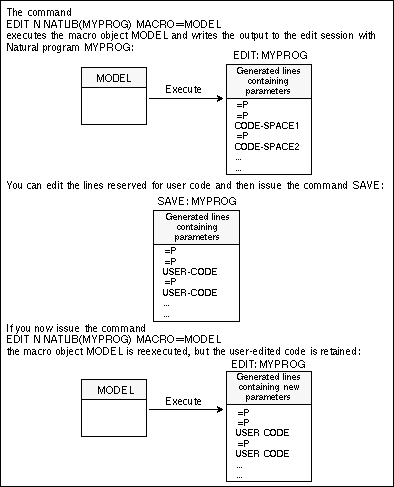
Using the example macro object EXMOD illustrated in the above example of
saving variables, consider the text generated by the command:
EDIT NAT MYLIB(MYPROG) MACRO=EXMOD
specifying MYAPPL and STARTUP as input values for the
prompted application and start program:
=P0001 ***M     GENERATED USING:EXMOD
=P0010 ***MSV #M-LIB = MYAPPL
=P0020 ***MSV #M-START = STARTUP
=P0030 DEFINE DATA
=P0040 LOCAL
=P0050 01 DUMMY  (A1)
=P0060 ***MBB DATA
000070 ** HERE YOU CAN DEFINE YOUR OWN FIELDS
=P0080 ***MBE
=P0090 END-DEFINE
=P0100 ***MBB START
000110 ** HERE YOU CAN ENTER YOUR OWN STATEMENTS
=P0120 ***MBE
=P0130 STACK TOP COMMAND 'STARTUP'
=P0140 STACK TOP COMMAND 'LOGON MYAPPL'
=P0150 STACK TOP COMMAND 'SETUP * SPF'
=P0160 *
=P0170 END
You can now define your own lines of code in the lines containing the comment
HERE YOU CAN DEFINE YOUR OWN FIELDS/STATEMENTS, for example:
=P0001 ***M     GENERATED USING:EXMOD
=P0010 ***MSV #M-LIB = MYAPPL
=P0020 ***MSV #M-START = STARTUP
=P0030 DEFINE DATA
=P0040 LOCAL
=P0050 01 DUMMY  (A1)
=P0060 ***MBB DATA
000070 01 #STARTDATA (A10) INIT <'INIT'>
=P0080 ***MBE
=P0090 END-DEFINE
=P0100 ***MBB START
000110 SET CONTROL 'MT'
000120 STACK TOP DATA #STARTDATA
=P0130 ***MBE
=P0130 STACK TOP COMMAND 'STARTUP'
=P0130 STACK TOP COMMAND 'LOGON MYAPPL'
=P0160 STACK TOP COMMAND 'SETUP * SPF'
=P0170 *
=P0180 END
You can save this source using the SAVE command. If you
now start an edit session with this member, regenerating the source by specifying the
macro object EXMOD in the command:
EDIT NAT MYLIB(MYPROG) MACRO=EXMOD
and specifying other values in the APPLICATION and
STARTPROGRAM prompt, for example YOURAPPL and
START, the following output is loaded in the edit area:
=P0001 ***M     GENERATED USING:EXMOD
=P0010 ***MSV #M-LIB = YOURAPPL
=P0020 ***MSV #M-START = START
=P0030 DEFINE DATA
=P0040 LOCAL
=P0050 01 DUMMY  (A1)
=P0060 ***MBB DATA
000070 01 #STARTDATA (A10) INIT <'INIT'>
=P0080 ***MBE
=P0090 END-DEFINE
=P0100 ***MBB START
000110 SET CONTROL 'MT'
000120 STACK TOP DATA #STARTDATA
=P0130 ***MBE
=P0140 STACK TOP COMMAND 'START'
=P0150 STACK TOP COMMAND 'LOGON YOURAPPL'
=P0160 STACK TOP COMMAND 'SETUP * SPF'
=P0170 *
=P0180 END
Source lines generated using the Edit macro option can be adapted to match the syntax
of the target language. This is done using the DATA-FORMAT statement as the
first executable macro statement in the macro object:
DATA-FORMAT=[sssssss] [yyy]
Note
This statement can only occur as the first executable macro statement. It must be
preceded by the macro character, and the keyword DATA-FORMAT must be the
first string in the line.
Meaning of the variables:
| Variable | Meaning |
|---|---|
sssssss |
Prefix string of up to 7 characters. The default is
***M.
|
yyy |
Suffix string of up to 3 characters. By default, this string is empty. |
Notes:
MODEL-DATA-FORMAT is also valid. The equal sign (=) is
optional and can be omitted if the keyword DATA-FORMAT is followed by at
least one separating blank, followed by the prefix and/or suffix strings.
In some cases, the invoked macro writes its own data into the source area (for
example, saved variables). The DATA-FORMAT statement provides a prefix
and suffix for that data. This definition must reflect a comment in the target
language.
The whole DATA-FORMAT statement cannot exceed one line.
The prefix or suffix string cannot contain commas or apostrophes. If any string contains blanks, the whole string must be enclosed in apostrophes.
§ DATA-FORMAT ******C
§ DATA-FORMAT=/*,*/ /* for PL1
An example macro using the DATA-FORMAT statement follows on the next
page.
The following macro object generates a job to perform a tape scan on a specified
volume. The DATA-FORMAT statement specifies JCL as the syntax format for
the generated source:
0010 § DATA-FORMAT //*
0020 § RESET #VOL(A6)
0030 § GET-DATA
0040 §  #VOL
0050 § END-GET
0060 § SET CONTROL 'WL60C10B005/005F'
0070 § INPUT (AD=MI'_') WITH TEXT 'ENTER VOLSER FOR TAPESCAN'
0080 §  / ' VOLSER            ' #VOL
0090 § SAVE-DATA
0100 //JWOTP12  JOB  JWO,CLASS=1,MSGCLASS=X,REGION=2500K
0110 //SCAN     EXEC TAPESCAN,TAPE=§#VOL
The following source is generated using the command:
EDIT NAT MYLIB(TAPESC) MACRO=EXJCL
and specifying volume COM811 in the prompt window that appears during
macro execution:
=P0001 //*      GENERATED USING:EXJCL
=P0010 //*FR //*
=P0020 //*SV #VOL = COM811
=P0030 //JWOTP12  JOB  JWO,CLASS=1,MSGCLASS=X,REGION=2500K
=P0040 //SCAN     EXEC TAPESCAN,TAPE=COM811
When you wish to execute macro objects from a Natural application or program outside Natural ISPF, the generated output is written to the source area, where it can be edited using the standard Natural program editor, and run in a production environment. A more detailed description follows in the subsections below.
Macro objects are invoked from other applications using the statement:
FETCH RETURN 'name' parameters
where name is the name of the macro to be invoked
and parameters the parameters to be passed to the
macro as required.
Note
The macro must be a cataloged object in the library SYSTEM or
STEPLIB.
Macro objects to be invoked in Natural applications outside Natural ISPF must carry
their own generation parameters. This is done by coding an appropriate
SET-MACRO statement in the macro as follows:
SET-MACRO
  parameter-definition ...
END-SET
where parameter-definition takes the following
format:
NAME   = object-name
SMODE  = {S}
         {R}
TYPE   = {P}}
       = {C}
       = {S}
       = {N}
       = {A}
       = {L}
       = {M}
       = {G}
       = {H}
       = {T}
Note
Any line of this processing statement must be preceded by the macro character. The
keyword SET-MACRO must be the first string in the respective line.
Meaning of variable:
| Variable | Meaning |
|---|---|
object-name |
Name given to the generated code. It must not exceed 8 characters and can be specified as an alphanumeric constant or the content of an alphanumeric variable. |
The values of the other keywords refer to the type and structure of the generated code.
The SET-MACRO statement defines the macro generation parameters
described under the above syntax. Note that if invoked using the Edit macro option,
the NAME parameter specified using the SET-MACRO statement
in the invoked macro is overridden by the name specified in the Edit macro call.
§ SET-MACRO NAME='MY-PROG' END-SET
§ SET-MACRO
§ NAME=#INPUT-PROG
§ TYPE=N
§ SMODE=S
§ END-SET
An example that demonstrates the use of this statement can be found in the Example
Library, objects MAC-RUNZ and MAC-RUNP. Executing the
program MAC-RUNP causes a Natural object to be generated, cataloged and
executed.
If the invoked macro uses GET-DATA/SAVE-DATA statements (see
the subsection Edit
Macro), the Natural subprogram ISP--RVU must be
called. This subprogram extracts the data from the source area and clears the source
area. It must be called before the macro is executed, and expects the output of the last
execution of the macro in the source area. Additionally, the subprogram
ISP--RVU provided has the following parameters:
| Name | Type | I/O | Meaning | ||||||
|---|---|---|---|---|---|---|---|---|---|
#MACRO |
(A8) | I/O |
|
||||||
#ERROR-CODE |
(N3) | O | Non-zero if error occurred. | ||||||
#ERROR-TEXT |
(A75) | O | Explanation of error. |
If you wish to use this feature, the following programs must be copied from the Natural
ISPF user exit library to your application or to a valid STEPLIB:
ISP--RVU
ISP--RVN
The Natural ISPF function command PLAY allows you to execute
sequences of Natural ISPF commands stored as any of a number of Natural ISPF objects
(PDS member, Natural object, workpool output, or, as explained below, as a macro
object). For details on the PLAY feature, see the subsection
Executing Command
Scripts in the section Useful Features in
the Natural ISPF User's Guide.
A command script can be generated by a macro, allowing scripts to be created and played dynamically. This can be done with the following syntax, valid from any system screen:
PLAY MAC library(member)
Here, the member must be a cataloged Natural object of type O (macro) or
of type P (program). For special considerations applying to type
P, see the subsection Splitting Macro Objects into
Modules.
For example, executing the following macro with the PLAY
command generates a prompt for a CHANGE command to be used
on a member, with a choice of a STOW or
SAVE command after the change is made:
§ RESET #MEMBER(A8) #FROM(A16) #TO(A16) #STOW(A1)
§ INPUT(AD=MI) 'Change' #FROM 'To' #TO 'in member' #MEMBER
           / 'Stow?' #STOW(A1)
EDIT NAT §#MEMBER
CHANGE '§#FROM' '§#TO' all
§ IF #STOW NE ' '
STOW
§ ELSE
SAVE
§ END-IF
END
For another example, see member VERIFY in the Example Library. This
macro generates a script that verifies whether or not Natural ISPF has been installed
correctly in your environment.
Apart from macro objects, other sources, such as PDS members, Natural programs, CA Panvalet members, etc., can use the macro feature by including inline macros. Inline macros are processing statements and variables included in a member. As a result of certain function commands, the member is checked for macro statements, and if any are found, the member is run as a macro object: the output is held in an intermediate file written to the user workpool. The invoked function is then performed on the intermediate file.
Inline macros also allow the use of a special INCLUDE-MACRO statement that
can invoke a macro object and include its output in the member. The
INCLUDE-MACRO statement takes the following format:
INCLUDE-MACRO name [parameter]
Note
This statement must be preceded by the macro character.
Meaning of the variables:
| Variable | Meaning |
|---|---|
name |
Identifies the compiled macro to be included. It can be an alphanumeric constant or variable and must not exceed 8 characters in length. |
parameter |
Parameters that can be sent to the macro to be received by
means of the INPUT statement.
|
Note
The macro object invoked by the INCLUDE-MACRO statement must be a
cataloged (CATALOG or STOW command)
object in the current Natural library, or library SYSTEM or
STEPLIB.
The function commands that perform macro expansion of inline macros and
INCLUDE-MACRO statements are:
For Natural programs: CHECK,
RUN, CATALOG,
STOW, SUBMIT;
For other sources (PDS, Librarian members, etc.): SUBMIT.
Note
The macro facility must be enabled either with the command MACRO
ON or by setting the MACRO EXPAND option in the user defaults
of your user profile to Y.
Important
When using inline macros in any non-Natural source, you must specify the Natural
programming mode before starting an edit session or issuing a
SUBMIT command. You do this via the MACRO SMODE
setting in the user defaults of your user profile (see the section Profile Maintenance in the
Natural ISPF User's Guide). If no mode is specified in your user
profile, the default is the mode defined by the system administrator.
Tip
Instead of submitting non-Natural members containing inline macros, a better
performance can be achieved by copying the member as a macro object to a Natural library,
compiling it, and then submitting it.
The following figure illustrates the use of inline macros:
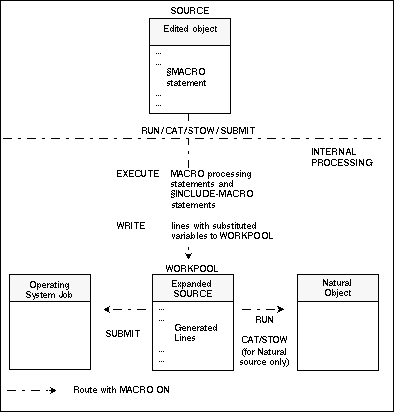
Note
If the macro facility is disabled (for example with the MACRO
OFF session command), the function is executed directly on the
source.
Below is an example of a Natural program which contains an INCLUDE-MACRO
statement. The program reads specified records from the file AUTOMOBILES:
DEFINE DATA LOCAL
1 AUTOMOBILES-VIEW VIEW OF AUTOMOBILES
  2 MAKE
  2 MODEL
  2 COLOR
1 #VALUE(A20)
END-DEFINE
*
INPUT #VALUE (AD=MIT'_')
§ INCLUDE-MACRO 'EXF1' 'AUTOMOBILES' 'MAKE' 'MODEL' 'COLOR'
END
Below is the macro object EXF1 called by the INCLUDE-MACRO
statement:
§ DEFINE DATA
§ LOCAL USING EXFL
§ LOCAL
§ 1 #I(N3)
§ END-DEFINE
§ *
§ DEFINE WINDOW WIND1 SIZE 13 * 60
§   BASE 10/10
§   CONTROL SCREEN
*
§ SET WINDOW 'WIND1'
§ INPUT(AD=MIT'_') ' DISPLAY RECORD IN A FILE'
§     / ' FILE NAME  : ' #FILE-NAME   0007 JWO      94-12-14 18:02
§     / ' KEY FIELD  : ' #KEY
§     / ' FIELD      : ' #FIELD(1) 2  0006 JWO      94-02-18 11:02
§     / '            : ' #FIELD(2)
§     / '            : ' #FIELD(3)
§     / '            : ' #FIELD(4)
§     / '            : ' #FIELD(5)
§ SET WINDOW OFF
READ(1) §#FILE-NAME BY  §#KEY STARTING FROM  #VALUE
INPUT ' §#KEY : '  20T ' ' §#KEY (AD=OI)
§ FOR #I = 1 TO 5
§ IF #FIELD(#I) = ' ' ESCAPE BOTTOM END-IF
 / ' §#FIELD(#I) : ' 20T ' ' §#FIELD(#I) (AD=OD)
§ END-FOR
END-READ
If you issue the RUN command from your Natural edit session,
you are prompted for the variable VALUE which corresponds to the starting
value of the records to be read. If you enter the required value (for example,
FERRARI), you are prompted for the fields MAKE,
MODEL and COLOR. Type in the required values and press
ENTER. The output of the program is written to the user workpool under the
name ##INLINE.
DEFINE DATA LOCAL /* L0060
1 AUTOMOBILES-VIEW VIEW OF AUTOMOBILES /* L0070
  2 MAKE /* L0080
  2 MODEL /* L0090
  2 COLOR /* L0100
1 #VALUE(A20) /* L0110
END-DEFINE /* L0120
INPUT #VALUE (AD=MIT'_') /* L0150
READ(1) AUTOMOBILES-VIEW BY  MAKE STARTING FROM  #VALUE
INPUT ' MAKE : '  20T ' ' MAKE (AD=OI)
 / ' MODEL : ' 20T ' ' MODEL (AD=MI)
 / ' COLOR : ' 20T ' ' COLOR (AD=MI)
END-READ
END /* L0170
The macro object used as an example for the substitution of variables in JCL lines
described in the subsection Macro
Objects could also be a PDS member: the job performs a
SYSMAIN
COPY function, with the source and destination values given
as variables:
§ RESET #JOBNAME(A8)
§ RESET #FD(N3) #FL(A8) #FF(N3)
§ RESET #TD(N3) #TL(A8) #TF(N3)
§ COMPRESS *INIT-USER 'SM' INTO #JOBNAME LEAVING NO SPACE
§ INPUT  'ENTER PARAMETERS FOR LIBRARY COPY:'
§  /     'FROM:   DBID:' #FD 'FNR:' #FF 'LIB:' #FL
§  /     'TO  :   DBID:' #TD 'FNR:' #TF 'LIB:' #TL
//§#JOBNAME JOB JWO,MSGCLASS=X,CLASS=G,TIME=1400
//COPY EXEC PGM=NATBAT21,REGION=2000K,TIME=60,
// PARM=('DBID=9,FNR=33,FNAT=(,15),FSIZE=19',
//       'EJ=OFF,IM=D,ID='';'',MAINPR=1,INTENS=1')
//STEPLIB  DD  DISP=SHR,DSN=OPS.SYSF.V5.ADALOAD
//         DD  DISP=SHR,DSN=OPS.SYSF.PROD.LOAD
//DDCARD   DD  *
ADARUN DA=9,DE=3380,SVC=249
//CMPRINT  DD  SYSOUT=X
//CMPRT01  DD  SYSOUT=X
//CMWKF01  DD  DUMMY
//CMSYNIN  DD  *
LOGON SYSMAIN2
CMD C C * FM §#FL DBID §#FD FNR §#FF TO §#TL DBID §#TD FNR §#TF REP
FIN
If you issue the SUBMIT command from your PDS edit session,
the macro processing statements are executed and you are prompted for source and
destination values in the following window:
ENTER PARAMETERS FOR LIBRARY COPY: FROM: DBID: FNR: LIB: TO : DBID: FNR: LIB: |
Assuming you enter 1 in the FROM:
DBID and FNR fields, enter 2 in the TO:
DBID and FNR fields, and enter MYLIB in both
LIB fields, the JCL lines are generated and the job is submitted to the
operating system. You can access and maintain the generated JCL in the user workpool
under the name ##SUBMIT:
//MBESM JOB JWO,MSGCLASS=X,CLASS=G,TIME=1400
//COPY EXEC PGM=NATBAT21,REGION=2000K,TIME=60,
// PARM=('DBID=9,FNR=33,FNAT=(,15),FSIZE=19',
//       'EJ=OFF,IM=D,ID='';'',MAINPR=1,INTENS=1')
//STEPLIB  DD  DISP=SHR,DSN=OPS.SYSF.V5.ADALOAD
//         DD  DISP=SHR,DSN=OPS.SYSF.PROD.LOAD
//DDCARD   DD  *
ADARUN DA=9,DE=3380,SVC=249
//CMPRINT  DD  SYSOUT=X
//CMPRT01  DD  SYSOUT=X
//CMWKF01  DD  DUMMY
//CMSYNIN  DD  *
LOGON SYSMAIN2
CMD C C * FM 1 DBID 1 FNR 1 TO 2 DBID 2 FNR 2 REP
FIN
/*
When you are writing a macro designed to generate larger amounts of data (for example,
large batch jobs), certain technical limitations (for example, ESIZE
restrictions) are encountered. To avoid these problems, the macro object should be split
into several modules to create entire macro applications.
Because a cataloged Natural object of type P (program) can also be used as a macro, the
object can also be addressed from Natural ISPF with the commands COPY
MAC, PLAY MAC or SUBMIT
MAC. The FETCH RETURN statement can then be used to branch
from such a program to a real macro object, that generates JCL, for example. This
statement works for macro objects in the same way as it does for Natural programs: the
text lines generated by several macro objects called in succession, are simply accumulated
in the User Workpool.
The following program IG-----P can be executed with the command:
SUBMIT MAC PROB-DE1(IG-----P)
It executes a screen dialog and then addresses various other Natural objects. Some of
these are programs (IGDOCM-P, IGDNEW-P), which perform online
actions, but others are macro objects (IGJOBC-Z, IGIEBC-Z),
that generate JCL lines.
000010 DEFINE DATA
000020             GLOBAL USING  IF-----G
000030             LOCAL  USING  XXCTIT-A
000040             LOCAL
------ ---------------------------------------------- 740 line(s) not displayed
007450   INPUT USING MAP 'IGINP-1M'
007460   SET CONTROL 'WB'
007470   DECIDE ON EVERY VALUE OF ##TYPE(#K)
007480     VALUE 'D'
007490       FETCH RETURN 'IGDOCM-P'         /* Create documentation member
007500     VALUE 'H'
007510       FETCH RETURN 'IGDNEW-P' ##PARM(#K)  /* Update the news member
007520     VALUE 'X'                        /* user defined
007530       FETCH RETURN ##PROGRAM(#K) ##PARM(#K)
007540     VALUE 'S', 'U' , 'B' , 'I' , 'Z'
007550       IF #JOB-CREATED EQ FALSE
007560         FETCH RETURN 'IGJOBC-Z'         /* Job-card
007570         MOVE TRUE TO #JOB-CREATED
007580       END-IF
007590     VALUE 'I'
007600       FETCH RETURN 'IGIEBC-Z' ##PARM(#K)  /* IEBCOPY
The output of objects that use the Natural ISPF macro facility is written to the user workpool at execution time. This subsection summarizes which commands can be used for which object types to write output to the workpool and under what name the output appears in the workpool:
| Object Type | Command | Name of Output in Workpool |
|---|---|---|
| Macro | RUN
|
macro-name
|
EXECUTE |
macro-name
|
|
PLAY |
##PLAY |
|
| Natural program with inline macros | STOW/CAT/RUN |
##INLINE |
| Macro and other objects with inline macros | SUBMIT |
##SUBMIT |
Note
Workpool files are intermediate files only. If you wish to keep source that was
generated in the workpool, it is strongly recommended that you store it as another object
elsewhere in Natural ISPF. See the subsection Saving Output in the
section Common Objects of the Natural ISPF User's
Guide).