
This document covers the following topics:
Natural ISPF provides a number of special programming facilities that help you realize powerful and flexible application development at your site with a minimum of effort. The following figure lists the available facilities:
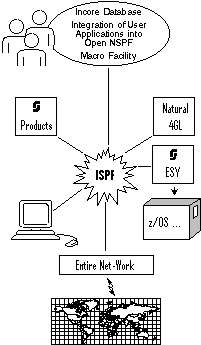
Incore Database:
Allows you to maintain complex data structures (free format texts, tables, reports,
files, etc.) in user memory in a so-called incore file. Data in an incore file can be
manipulated using familiar Natural statements and/or by integrating the Software AG
Editor in Natural.
Integration of User Applications into Open NSPF:
The Open NSPF facility allows you to extensively customize your Natural ISPF
environment to suit the (changing) working needs of your installation. You can create
new objects and relate functions to them, thus making the whole Natural ISPF
infrastructure available for these objects. The integration of new objects can be made
easy by the ability to modify existing menus and create new ones.
Macro Facility:
Natural ISPF facilitates rapid editing using a special macro feature: source lines of
any kind can be generated automatically, thus making much time-consuming typing in of
data redundant.
The Natural ISPF Incore Database facility supports the creation of "incore files" in user memory, allowing you to maintain complex data structures and to perform a wide range of actions on these structures. With the Incore Database, you can use Natural to handle free format texts, reports, files and tables.
Using incore files in application development has several advantages:
You can integrate Software AG Editor functions in Natural programs, enabling flexible manipulation of your incore files;
An incore file is a temporary workfile of unlimited space running in unshared memory;
You can have your personal environment to test and prototype your applications away from your site's database administration activities. After prototyping, no further source changes are required to access shared data in a real database;
If you wish to keep the contents of an incore file permanently, you can write them to a container file. You can retrieve the incore file later, thus avoiding the need to regenerate the data from your programs.
The structure of an incore file is defined in the same way as any other Natural view. Incore files are not identified by a file number but by an identifier, thus allowing multiple copies of a file created with the same view to be in the database at the same time. Once an incore view has been defined, incore files can be created in any of a number of ways:
Implicitly using a STORE statement in a Natural program
Explicitly using a CALLNAT statement with ACTION=CREATE
Dynamically by writing the output of a Natural program to an incore file with
WRITE or DISPLAY
You can use standard Natural DML statements to retrieve, add, modify and delete records
in an incore file. Operations on an incore file as a whole
(EDIT, BROWSE,
DELETE) can be performed using the CALLNAT
statement. The CALLNAT statement is also used to realize program-controlled
editing with Software AG Editor commands for display (for example,
BNDS, EXCLUDE,
INCLUDE, CAPS,
HEX, etc.), scroll (for example,
FIND, BOTTOM,
TOP, UP,
DOWN, LOCATE, etc.), and text
manipulation (CHANGE, DELETE,
JUSTIFY, etc.).
The following example program illustrates the implicit creation of an incore file
using the STORE statement. A text line is written to the file and the
file is then presented to you in an edit session, allowing you to add further text
lines:
DEFINE DATA LOCAL USING IDBI---L
LOCAL
1 TEXT VIEW OF ISP-IDB-TEXT
  2 LINE
END-DEFINE
*
ASSIGN TEXT.LINE    = 'THIS IS THE FIRST LINE OF TEXT'
STORE  TEXT IDENTIFIER = 'MYTEXT'     /* Create incore text file
*
RESET INCORE-CTL INCORE-DATA          /* Enter data in file
SET CONTROL  'WB'                     /* using an ISPF Editor
SET CONTROL  'L'
SET KEY ALL
ASSIGN ACTION          = 'EDIT'
ASSIGN FILE-IDENTIFIER = 'MYTEXT'
CALLNAT INCORE USING INCORE-CTL INCORE-DATA /* Invoke the Editor as shown below
*
READ TEXT IDENTIFIER = 'MYTEXT'             /* Read file for further processing
.....
END-READ
END
Running this program results in the following display:
EDIT:-MYTEXT-------------------------------------------------------------------
COMMAND==>
**** ******************************* top of data ******************************
0001 THIS IS THE FIRST LINE OF TEXT
**** ***************************** bottom of data *****************************


Enter-PF1---PF2---PF3---PF4---PF5---PF6---PF7---PF8---PF9---PF10--PF11--PF12---
:I :CC QUIT :D RFIND RCHAN UP DOWN :DD RIGHT LEFT CURSO |
All Editor functions are now available: there is no need to code them into your program. The program does not regain control until the Editor session is terminated with PF3.
Natural ISPF provides a unified environment that allows you to access various types of
external objects (such as Natural programs, PDS members, or jobs) using the same user
interface. Objects can be accessed using Natural ISPF menus (examples are entry screens
for object types or the administration screen) and/or commands (for example:
EDIT PDS).
The Open NSPF facility allows you to customize the Natural ISPF environment by:
integrating your own site-specific objects
defining new commands or command synonyms relevant to your site
modifying existing menus or defining new ones
Taking advantage of this facility yields a number of benefits:
The Natural ISPF user interface can be expanded to encompass your site-specific objects, giving you a truly single system image of all your resources;
All advantages of Natural ISPF features are available for your integrated objects and applications: split-screen, multi-session operations and cross-session operations are among the most obvious.
New site-specific objects and new commands are defined to Natural ISPF by adding an object code or a command code to the so-called "Site Control Table". In the same table, new objects can additionally be related to functions (typically, existing Natural ISPF functions).
Implementing the corresponding logic in Natural ISPF is done by writing a subprogram
and copying it to the Natural ISPF execution library (SYSLIB). Each new
object and command has a unique program, which is called by Natural ISPF whenever the
object is accessed or the command is issued.
You could integrate management of your personnel file in Natural ISPF by integrating
the new object EMPLOYEE. You can relate this new Natural ISPF object to
functions such as LIST, DELETE,
or EDIT. If a function is then invoked for object
EMPLOYEE, the subprogram linked to the object is executed, handling all
object-specific logic.
You could define the new command MAIL in the Site Control
Table. Each time this command is issued, the corresponding logic is executed, which
could consist of a search of your office system and a returned message indicating your
mail status (for example, whether you have received new items).
Menu customization means you can create new menus or modify existing ones. You can also change the default menu, causing a menu of your choice to be displayed when you log on to Natural ISPF.
Within the context of the Open NSPF facility, the ability to customize menus is significant because it allows you to make the integration of and access to new objects and applications at your site much more comfortable and user-friendly. As a prime example, the interfaces to Con-nect and Predict were implemented using the Open NSPF facility.
For another example, having defined EMPLOYEE as an object to Natural ISPF
and linked it to certain functions (for example, LIST,
DELETE, EDIT, ...), you could
modify the Natural ISPF main menu, making the maintenance of employees a selectable
option. The corresponding EMPLOYEE menu could contain parameter fields such
as NAME, FIRST NAME, SEX, CITY to
make a search request to the personnel file as comfortable and flexible as possible:
---------------------------- EMPLOYEES - ENTRY PANEL -------------------------
COMMAND ===> LIST


   Name          ===> BA*                     ( Or name pattern for LIST )
   First name    ===> *                       ( Or name pattern for LIST )
   Sex           ===> M                       ( F, M )
   City          ===>
   Records       ===>                         ( Nr. of records to be shown )


Enter-PF1---PF2---PF3---PF4---PF5---PF6---PF7---PF8---PF9---PF10--PF11--PF12---
      Help  Split End   Suspe Rfind Rchan Up    Down  Swap  Left  Right :s
|
Entering data in the fields with the LIST command as shown
above will list male employees whose last names start with BA. The list
could be displayed in Software AG Editor format, provided a suitable incore file is
created by the application. All Editor and Natural ISPF features for lists are
available.
The power of Open NSPF is limited only by the resources available at your site and the imagination of the programmers.
Natural ISPF provides a macro feature that allows you to use the Natural language to generate text of any kind. In a process known as macro expansion, text is generated, which can be done by substituting variables, repeating blocks, generating blocks conditionally, even performing screen or file I/Os.
The macro feature is useful when you are creating different sources, all of the same structure but with different content. The macro feature thus supports you in editing programs and other sources, offering a number of benefits when developing applications with Natural ISPF. Among them are:
Rapid editing: the automatic generation of text lines in any source and any format relieves you of much routine editing work;
Error elimination: the automatic generation of text lines eliminates a main source of error (typing and syntax errors);
Reduced disk space requirements, for example for job control: jobs generated using macro expansion need not be held in personal libraries.
Used in Natural programs, the macro feature is an extension of the Natural language, consisting of:
special processing statements executed when the program is compiled
variables in source lines substituted by valid values at compilation time
These special processing lines and variables are distinguished in the source by preceding them with the macro character.
As a simple example of macro processing lines and variables, if you define the following macro:
0010 § MOVE 'PERSONNEL' TO #FILE-NAME (A32)
0020 § MOVE 'NAME'      TO #KEY       (A32)
0030 READ §#FILE-NAME BY §#KEY
the following source line is generated at compilation time:
READ PERSONNEL BY NAME
By varying the values, a variety of source lines can be created. This makes it possible to access each Natural view at your site from the same "skeleton" program.
However, the macro feature is not restricted to Natural programs and can be used in Natural ISPF in a number of ways, as described below.
Macro objects are a special type of Natural object and can be accessed and maintained as any other Natural object. They contain macro processing lines and macro variables and can be used to generate any kind of text (for example, documents, Natural sources, 3GL sources, job control). When a macro is executed, it is expanded and the output is written to the user workpool, where it can be further maintained and turned into another source. Macros can also be referenced from other Natural ISPF objects to generate text lines.
Other Natural ISPF objects (Natural programs, PDS members, etc.) can use macro
variables in their source. They can also reference a macro object using the special
INCLUDE-MACRO macro-name statement. When the
object is compiled (for a Natural object) or submitted (for non-Natural objects), the
variables are substituted, the specified macro object is executed, and the generated
lines are included in the source.
The generated output of objects that use the macro facility is written to the user workpool, where it can be checked and further handled.
When starting an edit session with a Natural ISPF object (Natural program, PDS member, etc.), you can specify a macro object to be used as a model for the new edit session. The specified macro is executed and the generated lines written to the new edit session. The lines generated in this way are protected, but you can reserve some places in the macro object at which you can add specific code in the members generated with the edit macro.
A special REGENERATE command is available here, which
regenerates the macro model, but retains the specific code you have added.
The following is an example macro object. Macro processing lines are identified by
the macro character in the first column (in our example, the paragraph sign (§) is
used). This example generates JCL lines for an IEBCOPY job, allowing
flexible selection of members to be copied:
000010 § DEFINE DATA LOCAL
000020 § 1 #JOB            (A08)
000030 § 1 #USER           (A08)
000040 § 1 #IN-DSNAME      (A44)
000050 § 1 #IN-VOLSER      (A6)
000060 § 1 #MEMBER         (A8)
000070 § 1 #OUT-DSNAME     (A44)
000080 § 1 #OUT-VOLSER     (A6)
000090 § 1 #DD-VOL         (A20)
000100 § *
000110 § 1 PDS-DIRECTORY-VIEW  VIEW OF PDS-DIRECTORY
000120 §   2 NODE
000130 §   2 DSNAME
000140 §   2 VOLSER
000150 §   2 MEMBER
000160 § END-DEFINE
000170 § INPUT  'COPY MEMBERS  ==>' #MEMBER
000180 §     /  'FROM DSNAME   ==>' #IN-DSNAME   'VOLSER==>' #IN-VOLSER
000190 §     /  'TO   DSNAME   ==>' #OUT-DSNAME  'VOLSER==>' #OUT-VOLSER
000200 § COMPRESS *USER 'IEB' INTO #JOB LEAVING NO SPACE
000210 § MOVE     *USER TO #USER
000220 //§#JOB     JOB  §#USER,CLASS=G,MSGCLASS=X
000230 //COPY   EXEC PGM=IEBCOPY
000240 //SYSPRINT DD SYSOUT=*
000250 § IF #IN-VOLSER NE ' '
000260 §   COMPRESS ',VOL=SER=' #IN-VOLSER INTO #DD-VOL LEAVING NO SPACE
000270 § ELSE
000280 §   RESET #DD-VOL
000290 § END-IF
000300 //I     DD DISP=SHR,DSN=§#IN-DSNAME§#DD-VOL
000310 § IF #OUT-VOLSER NE ' '
000320 §   COMPRESS ',VOL=SER=' #OUT-VOLSER INTO #DD-VOL LEAVING NO SPACE
000330 § ELSE
000340 §   RESET #DD-VOL
000350 § END-IF
000360 //O     DD DISP=SHR,DSN=§#OUT-DSNAME§#DD-VOL
000370 //SYSIN DD *
000380   C I=I,O=O
000390 § IF NOT ( #MEMBER = '*' OR = ' ' )
000400 § FIND PDS-DIRECTORY-VIEW
000410 §     WITH DSNAME = #IN-DSNAME
000420 §      AND VOLSER = #IN-VOLSER
000430 §      AND MEMBER = #MEMBER
000440   S M=§MEMBER
000450 § END-FIND
000460 § END-IF
When this macro is RUN, macro expansion takes place and
you are prompted for the source members and target destination:
COPY MEMBERS  ==>
FROM DSNAME   ==>                                              VOLSER==>
TO   DSNAME   ==>                                              VOLSER==>
You can make use of generic search criteria (wildcard selection) to select members according to name pattern. The example below selects all members in the source data set that have the dollar sign ($) as third character:
COPY MEMBERS  ==> __$*
FROM DSNAME   ==> nispf.qa.cases                               VOLSER==>
TO   DSNAME   ==> mbe.comn.source                              VOLSER==>
When the source members and target data set have been specified, the following JCL is generated and written to the user workpool, where it can be further edited if required and submitted:
000001 //MBEIEB     JOB  MBE,CLASS=G,MSGCLASS=X
000002 //COPY   EXEC PGM=IEBCOPY
000003 //SYSPRINT DD SYSOUT=*
000004 //I     DD DISP=SHR,DSN=NISPF.QA.CASES
000005 //O     DD DISP=SHR,DSN=MBE.COMN.SOURCE
000006 //SYSIN DD *
000007   C I=I,O=O
000008   S M=BF$LS
000009   S M=DA$LS
000010   S M=DJ$LS
000011   S M=DS$AL
000012   S M=DS$IN
000013   S M=DS$LS
000014   S M=MV$LS
000015   S M=NV$LS
000016   S M=PV$LS
The IEBCOPY job with a valid member list is thus generated
automatically, no further manual intervention is required.