
This document covers the following topics:
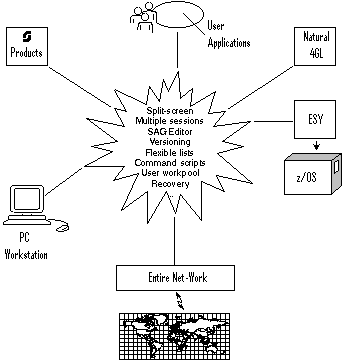
Much of the power of Natural ISPF lies in the wealth of special features it offers to make your work in application development as comfortable as possible. Natural ISPF features are too numerous to elaborate here, and such facilities as user profiling, individual user defaults, abbreviations for long data set names, flexible PF-key assignments, activity tracing and easy administration should these days be taken for granted. However, a few other, particularly interesting features are presented below just to whet your appetite:
Working with Natural ISPF in split-screen mode means dividing your terminal screen
horizontally into two sections using the SPLIT command and
running a Natural ISPF session in each section. You can change the portion of the terminal
screen devoted to each session by moving the cursor to where you wish to split the screen
and repeating the SPLIT command.
The split-screen feature is useful for easy control of parallel sessions. For example, you could run a Natural program from an edit session in one part of the screen and immediately see the resulting output in a session with the User Workpool in another part of the screen.
If both sessions are edit sessions, cross-session actions are possible. For example, you can move or copy data from one session to the other. A common way to work with Natural ISPF is to run multiple sessions from your terminal with two sessions in split-screen mode. For an example of working in split-screen mode, see the description of Natural members and Views in the section Natural ISPF Objects, as well as in the subsection on Multiple Sessions below.
Working in multi-session mode means starting several parallel Natural ISPF sessions. You can control up to 20 active Natural ISPF sessions from your terminal. Sessions can be suspended (put to the back of the other sessions) or resumed (brought to the front) as required.
Typical examples of multi-session operations are copying data from one edit session to another, or editing and running a Natural program in one session and checking the resulting output in another.
The following figure illustrates a terminal screen with Natural ISPF in multi-session mode:
---------------------------NATURAL-ISPF-MAIN-MENU------------------------------
>-------------------------NATURAL-VIEW--ENTRY-PANEL----------------------------
>>EDIT-PDS:MBE.SYSF.SOURCE(NOJC02)------------------- >>> Versioning is invoked
 COMMAND===>                                                    SCROLL===> CSR
****** ****************************** top of data *****************************
000001 //SNNO2J02 JOB   SN,CLASS=G,MSGCLASS=X,MSGLEVEL=(1,1)
000002 //*
000003 //*        DEMONSTRATION JOB
000004 //*
000005 //IEFBR14  EXEC  PGM=IEFBR14
000006 //SYSPRINT DD    SYSOUT=*
000007 //*
000008 //STEP01   EXEC  PGM=SNABND,PARM='C0004'
000009 //STEPLIB  DD    DSN=NATOP.V110.LOAD,DISP=SHR
000010 //
LIST-NAT:NSPF101------------------------------- Row 11 of 323 - columns 010 076
 COMMAND===>                                                    SCROLL===> CSR
   MEMBER            PGMTYPE     SM S/C VERSION   USERID   DATE     TIME  VV.MM
   ISUO#4            Subprogram  S  S/C 8.2 0001  BLI      20110131 17:46 01.17
   ZDICSET4          Program     S  S/C 8.2 0001  BLI      20110131 16:48 01.01
   BLICATAL          Text           S   8.2 0001  BLI      20110128 11:42
   ISP-TECH          Program     S  S/C 8.2 0001  BLI      20110124 17:57 01.26
Enter-PF1---PF2---PF3---PF4---PF5---PF6---PF7---PF8---PF9---PF10--PF11--PF12---
      Help  Split End   Suspe Rfind Rchan Up    Down  Swap  Left  Right Curso
|
The screen shows two suspended sessions, one containing the Natural ISPF main menu, the other a session with the Views facility; two session are displayed in split-screen mode, the top session contains an editing session with a PDS member, the bottom session contains a list of Natural objects.
Switching between sessions is easy: just place the cursor on the required session and
issue the POP command to bring the marked session to the front.
This process is made even easier by assigning the POP command
to a PF-key. A session is then selected by positioning the cursor on it and pressing the
PF-key.
Natural ISPF includes the Software AG Editor, which is the same as the editor used, for example, by Natural for UNIX. The Editor looks familiar to programmers used to time-sharing environments (for example, TSO/ISPF on z/OS), and use of the Editor requires little or no extra training.
The Editor is used to list, browse and edit all objects accessible via Natural ISPF, meaning that you have one uniform editor to display and handle the whole range of objects at your site, irrespective of any underlying operating systems.
Additionally, the Editor is especially adapted to the Natural ISPF environment and your
special needs in application development. This means that the Editor provides
object-specific commands such as CHECK,
RUN, CAT,
STOW for Natural objects and
SUBMIT for job control members.
Together with Natural ISPF features such as multiple sessions, split-screen, and cross-session operations such as data transfer across operating systems, the Editor is a powerful tool in the hands of application developers and system programmers alike.
The following example simply shows an edit session with a macro-type Natural program:
EDIT-NAT:NSPFEXAM(MAC-MVS3)-Macro->Struct-Free-42K ------------ Columns 001 072
 COMMAND===>                                                    SCROLL===> CSR
****** ****************************** top of data *****************************
000010 § DEFINE DATA LOCAL
000020 § 1 #JOB            (A08)
000030 § 1 #USER           (A08)
000040 § 1 #IN-DSNAME      (A44)
000050 § 1 #IN-VOLSER      (A6)
000060 § 1 #MEMBER         (A8)
000070 § 1 #OUT-DSNAME     (A44)
000080 § 1 #OUT-VOLSER     (A6)
000090 § 1 #DD-VOL         (A20)
000100 § *
000110 § 1 PDS-DIRECTORY-VIEW  VIEW OF PDS-DIRECTORY
000120 §   2 NODE
000130 §   2 DSNAME
000140 §   2 VOLSER
000150 §   2 MEMBER
000160 § END-DEFINE
000170 § INPUT  'COPY MEMBERS  ==>' #MEMBER
000180 §     /  'FROM DSNAME   ==>' #IN-DSNAME   'VOLSER==>' #IN-VOLSER
000190 §     /  'TO   DSNAME   ==>' #OUT-DSNAME  'VOLSER==>' #OUT-VOLSER
Enter-PF1---PF2---PF3---PF4---PF5---PF6---PF7---PF8---PF9---PF10--PF11--PF12---
      Help  Split End   Suspe Rfind Rchan Up    Down  Swap  Left  Right :s
|
Natural ISPF can keep previous versions of objects after they have been edited and saved (or, in the case of Natural programs, stowed). Product-specific versioning features are supported for data set members kept in CA Librarian.
Previous versions of Natural objects or PDS members are treated as separate objects in Natural ISPF and can be listed, browsed and deleted as any other member. You can retrieve a previous version for further editing by storing it in the object library under a different name. Additionally, specific versions can be held permanently, meaning they are not automatically deleted when the maximum number of versions is reached. A special command is available that allows you to see the difference between any selected previous version and the current version of a member.
The advantages of the Natural ISPF versioning feature to application developers are obvious: the history of applications can be tracked, earlier versions can be reverted to and using other Natural ISPF features such as split-screen and cross-session operations, data can easily be transferred between versions.
The following example shows the effect of the DIFFERENCE
command issued for a previous version: a message in the prefix area marks those lines that
have changed from the selected previous version to the current version. In our example,
the message Old> marks those lines that have been modified (lines 490 and
530), and the message New> marks the line that has been added (line 540):
DIFFERENCE-NV:JWO(EXAM)-Ver<-1>-93/12/20-11:04:19 ------------- Columns 011 076
COMMAND===>                                                    SCROLL===> CSR
     000460 *
     000470   DECIDE ON EVERY VALUE OF #FUNCTION
     000480     VALUE 'REPORT', 'BOTH'
     000490       DISPLAY (1) HORSEPOWER MAKE MODEL COLOR
   Old>0490       DISPLAY (1) HORSEPOWER MAKE MODEL COLOR NUMBER-OF-CYLINDERS
     000500     VALUE 'TUNING', 'BOTH'
     000510       IF #NEW NE HORSEPOWER
     000520         MOVE #NEW TO HORSEPOWER
     000530         DISPLAY (2) HORSEPOWER MAKE MODEL COLOR #NEW
   Old>0530         DISPLAY (2) HORSEPOWER MAKE MODEL COLOR NUMBER-OF-CYLINDER
   New>0540         WRITE (2)  'Car is updated'
     000550         UPDATE
     000560         ADD 1 TO #UPD-CNT
     000570         PERFORM ET-LOGIK
     000580       END-IF
     000590     VALUE 'STOP' , 'END'
     000600       STOP
     000610     NONE
     000620       REINPUT WITH TEXT 'INVALID FUNCTION SELECTED'
     000630   END-DECIDE
Enter-PF1---PF2---PF3---PF4---PF5---PF6---PF7---PF8---PF9---PF10--PF11--PF12---
      Help  Split End   Suspe Rfind Rchan Up    Down  Swap  Left  Right :s
|
Before an object can be edited or browsed, you must first locate it. No problem?
How often has it happened that you cannot quite remember the name of the program you need, or that you have forgotten in which library you have stored a certain job? Alternatively, if you have to change the name of, say, a certain parameter and you must change all references to this parameter, would it not be useful to list only those members in the object library that contain the parameter name?
The Software AG Editor integrated in Natural ISPF provides some powerful listing capabilities:
Libraries, or members in a known library can be listed according to a name pattern
using wildcard symbols. For example, specifying NSPF* for data set name
in a LIST command lists all data sets with the prefix NSPF.
Other search criteria can be a certain character or string in a certain place of the
name, or an object-specific characteristic, such as member type. This allows you to
locate objects with a minimum of knowledge of names.
Using a special scan option, objects can be listed according to a character string they contain. The resulting list indicates the number of occurrences of the string and displays the first occurrence.
The following example shows a list generated using the scan option: all objects in
Natural library NSPFEXAM starting with the string IDB and containing the
string READ are listed:
LIST-NAT:NSPFEXAM(IDB*)/SC=READ ----------------- Row 0 of 23 - Columns 010 076
 COMMAND===>                                                    SCROLL===> CSR
   MEMBER            PGMTYPE     SM S/C  NUM FIRST FOUND
** ******************************** top of list *******************************
   IDB-DEMO          Program     S  S/C    2 READ INCORE-SEMINAR IDENTIFIER = '
   IDB-HITN          Subprogram  S  S/C    3 * SUBPROGRAM TO READ/WRITE A FILE
   IDB-HITP          Program     S  S/C    5 CALLNAT 'IDB-HITN' 'R'
   IDB-HIT1          Program     S  S/C    1 CALLNAT 'IDB-HITN' 'R'
   IDB-HIT4          Program     S  S/C    6 READ INCORE-MUSIC  IDENTIFIER
   IDB-KEYS          Program     S  S/C    2 READ(100)  EMPLOYEES
   IDB-MOVI          Program     S  S      2 READ MOVIES IDENTIFIER = 'MYMOVIE'
   IDB-STO1          Program     S  S      2 READ IDB-PERSON  IDENTIFIER = 'TAB
   IDB-TABP          Program     S  S/C    2 READ INCORE-SEMINAR IDENTIFIER = '
   IDB-TEXP          Program     S  S      2 READ TEXT IDENTIFIER = 'MYTEXT'
   IDB-TEXT          Program     S  S/C    2 READ TEXT IDENTIFIER = 'MYTEXT'
   IDB-001P          Program     S  S/C    4 READ EMPLOYEES
   IDB-002P          Program     S  S/C    4 READ TEXT IDENTIFIER = 'SAMP1'
   IDB-003P          Program     S  S/C    2 READ(100)  EMPLOYEES
   IDB-004P          Program     S  S/C    5 1 #REPORT-ALREADY-EXISTS(L)
   IDB-006P          Program     S  S/C    5 PERFORM READ-DIRECTORY
   IDB-007P          Program     S  S/C   11 1 READ-FILE VIEW OF READ-FILE
   IDB-008P          Program     S  S/C    6 1 #PERSONNEL-CV-ALREADY-EXIST(L)
Enter-PF1---PF2---PF3---PF4---PF5---PF6---PF7---PF8---PF9---PF10--PF11--PF12---
      Help  Split End   Suspe Rfind Rchan Up    Down  Swap  Left  Right :s
|
Once a list has been generated, all Editor commands are available that help you find the
item you need (LOCATE a line, FIND a
string, UP, DOWN,
TOP, BOTTOM,
EXCLUDE lines from display, etc.). Additionally, some
commands are available that allow you to customize the list according to your needs:
With the SORT command, you can change the order of objects
according to the data in any displayed column. For example, in reverse chronological
order according to the DATE column or in alphabetical order according to
the USER column.
The LAYOUT command facilitates an even more powerful
rearrangement of listed information. It allows you to select the columns to be
displayed, suppress other columns, decide in which order the columns are to be
displayed, and define the order of information within the columns. Once the list is
customized as you require, you can store the layout, and future lists of this object
type will take the defined layout.
You can write and store a series of Natural ISPF commands in a member of any type
(Natural, PDS member, etc.). Such a member is known as a command script. The script can be
executed with the PLAY function command. The commands are then
executed sequentially.
For example, playing a member with the following content from a Natural edit session:
CHANGE 'READ' 'FIND' ALL
CHANGE 'FIND-FILE' 'READ-FILE' ALL
STOW
END
changes all occurrences of READ into FIND, then changes all
occurrences of FIND-FILE back to READ-FILE before stowing the
program and ending the session.
The example makes clear that the command script feature has many advantages and uses.
Frequently-used or repetitive command sequences can be kept as a script and executed with minimal editing effort.
Procedures can be automated by storing them in a script. For example, a script can be specified in your user profile and executed every time you log on to Natural ISPF. Your session is thus tailored to your requirements before the first Natural ISPF screen is even displayed.
Command scripts can be nested (that is, a PLAY command
within a command script), allowing maximum flexibility of automated command sequences.
Command scripts can be generated automatically using the macro facility. This allows for dynamic scripts with variable command parameters that are prompted at execution time.
An executing command script can be interrupted using the PAUSE
command coded in the script. This allows editing before the script continues. A script
which is executed by the PLAY command is stored in the User
Workpool. When a script is interrupted by a PAUSE command or an
error, the lines not yet executed are also written to the User Workpool and can be
modified.
The User Workpool is an internal pool used as destination for output from a number of different sources. Output can be listed and further maintained in the workpool facility, which is a standard option on the Natural ISPF main menu.
The following objects covered by this document are written to the User Workpool:
The output of objects that use the macro facility after macro expansion
The output of any Natural program or Natural utility outside of Natural ISPF that defines the workpool as a printer
A command script executed by the PLAY command; also, if a
command script is interrupted by the PAUSE command or an
error, the command lines not yet executed are written to the workpool and can be
modified
Output written to the User Workpool can be handled like any other Natural ISPF object, and can be stored permanently by copying to another object type in Natural ISPF.
A typical way of working with Natural ISPF is to have an edit session with a Natural program, with the output of the program in the workpool in another session so that you can see the effect of your editing immediately.
Natural ISPF provides a comfortable recovery facility for lost files after an abnormal termination or system crash.
A backup of the file you are editing is written after a certain number of lines have been modified (this number is specified in your personal user profile).
If you then lose files for any reason, Natural ISPF will notify you with a message at
your next logon, asking you to list the recovery files. If you issue the
RECOVERY command, you are presented with a list of recovery
files. You can select any recovery file from the list for EDIT
or DELETE.
If more than one file is to be recovered, you can re-edit one file. After saving it, pressing PF3 returns you to the list of recovered files and you can re-edit the next one.