
 To define messages and exits
In menu choose .
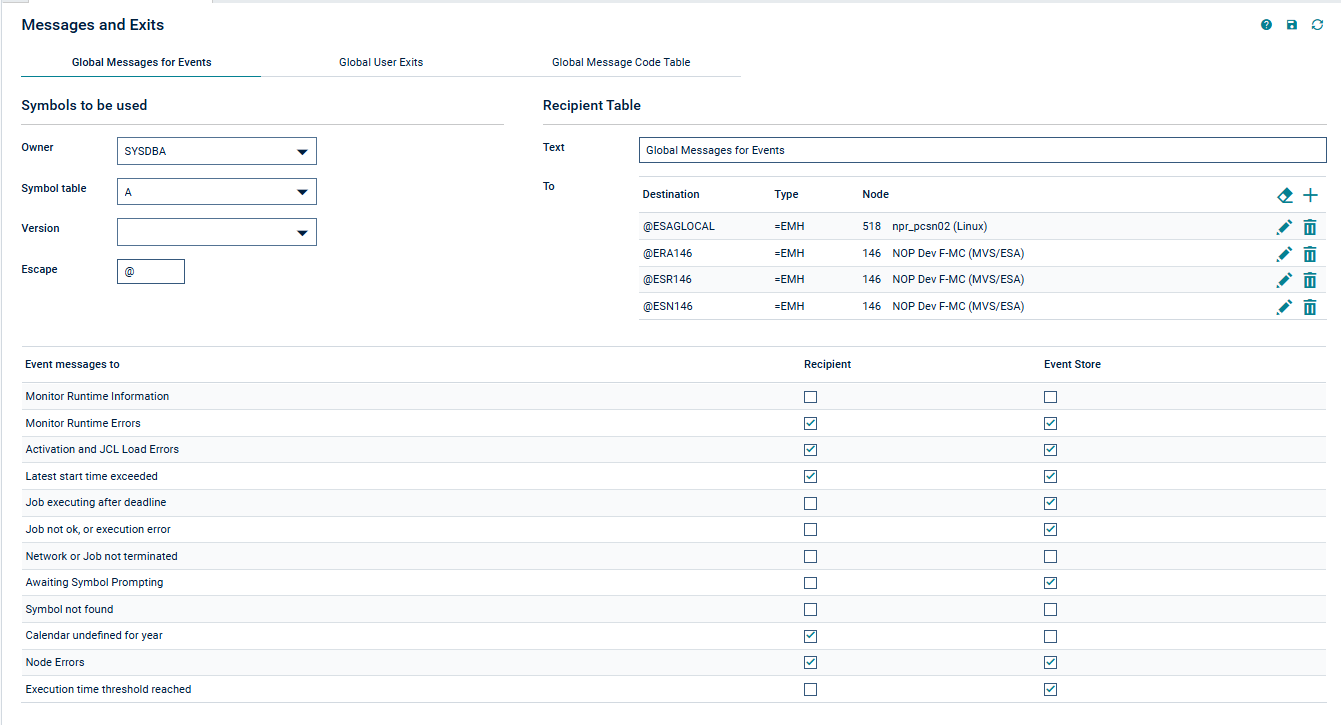
A Messages and Exits window like the example below opens:
If you want to distribute a message among specified recipients:
In the Recipient section on the tabbed page Global Messages for Events, check all events for which you want to send a message.
In , define all recipients for the selected events.
The columns contained in the window are explained in Fields and Columns: Message and Message Recipients in the section Message Sending in the User's Guide.
The functions provided in the window are explained in Available Functions: Message and Message Recipients in the section Message Sending in the User's Guide.
If you want to save a message in the event store of System Automation Tools:
In the Event Store section on the tabbed page Global Messages for Events, check all events for which you want to save a message in the event store.
For further information, see Global Messages for Events.
Make your specifications on the tabbed page Global User Exits.
For further information, see Global User Exits.
Make your specifications on the tabbed page Global Message Code Table.
This function allows you to select message codes to be checked by default after each job termination.
For further information, see Global Message Code Table.
To export a global user exit
On the tabbed page Global User Exits, choose .
The Export Objects window opens.
Proceed as described in Exporting Objects in the Import/Export Functions documentation.