Extended hot key management provides the following features:
Possibility to define hot keys with certain controls.
Possibility to define language dependent hot keys.
The following topics are covered below:
Some controls allow to directly specify hot keys within the text that is displayed inside the control. The controls that currently support this feature are:
BUTTON
MENU
ROWTABAREA
Example: If you specify the button text to be "~~Stop", the button will look like this:

The text may both be directly maintained in the control
(name property) or may come from the multi language
management (textid property).
At the time, the hot key CTRL+ALT+S will be added to the page. The definition of hot keys in the texts of MENU controls or ROWTABAREA controls is done in the same way.
Caution
Application Designer does not check if hot keys are defined twice in a page.
Why use CTRL+ALT as a default way to trigger the hot keys? This is because most of the simple ALT keys are already occupied by the browser.
The controls PAGE, FIELD and ROWTABLEAREA2 support the property
hotkeys.
The hotkeys property defines the active hot keys for the
corresponding control. This means that you may have hot keys that are only valid inside a
certain grid (ROWTABLEAREA2 control) or even inside a single FIELD, but are not valid
inside the whole page (PAGE control).
Have a look at the following demo:
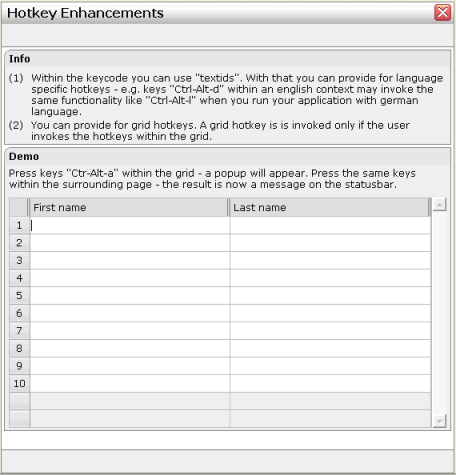
If the user presses CTRL+ALT+A inside the grid, the hot key is managed by the grid. If the user presses the same key outside the grid, the hot key is processed by a corresponding definition on page level. The XML layout looks as follows:
<page model="com.softwareag.cis.test40.GridHotkeysAdapter" translationreference="40_gridhotkeys"
      hotkeys="ctrl-alt-65;onCtrlAltAPage">
...
...
        <rowtablearea2 griddataprop="grid" rowcount="12" width="100%" firstrowcolwidths="true"
                       hotkeys="ctrl-alt-$KEYCODE_A;onCtrlAltA">
...
...
The hotkeys property on PAGE, FIELD or ROWTABLEAREA2 is a
semicolon-separated list containing the hot key itself and the method it is calling. There
can be multiple hot key definitions for the same control. When maintaining this property,
use the special dialog in the Layout Painter that appears for the
hotkeys property.
For further information, see Defining Hot Keys
in the
Development Workplace documentation.
You can either specify the key code of the hot key or a text ID that is to be translated by the multi language management.