
This document covers the following topics:
To create OpenAPI services, the Natural OpenAPI Server needs to read the definition of a Natural subprogram. This information is modeled and stored in a service JSON file.
Each service JSON file represents a single Natural subprogram and contains the following information:
Natural subprogram and library names
OpenAPI schema mappings between OpenAPI parameters and Natural input and output parameters
Query parameters that can also be mapped to Natural parameters
Note
Query parameters currently do not support array mappings.
 To create an OpenAPI service
Right-click the desired subprogram.
Select Generate OpenAPI Service. The following menu is displayed with these options:
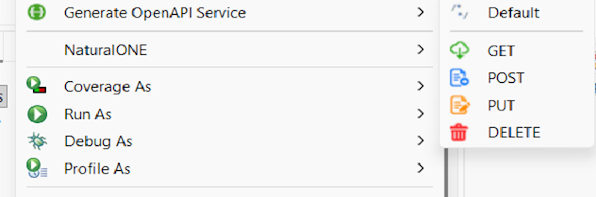
Default – Uses the HTTP method defined in the subprogram. If no HTTP method is defined in the subprogram, the value configured in Preferences is used.
GET / POST / PUT / DELETE – Selecting a specific HTTP method overrides the default method and defines the method that the service will use.
Note
Array parameters currently do not support the GET and
DELETE HTTP methods.
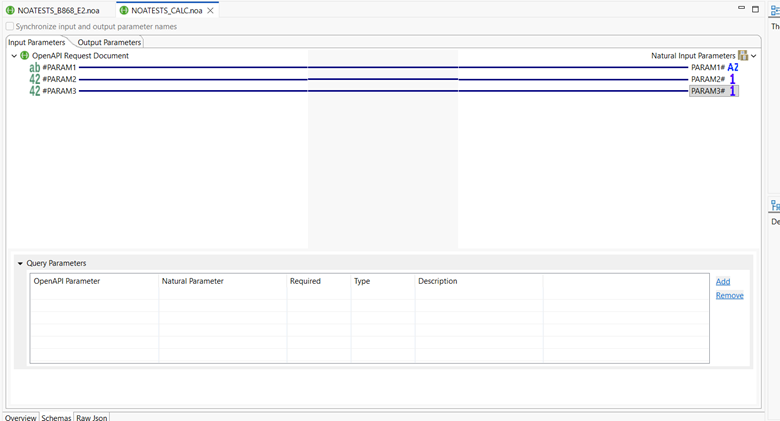
The OpenAPI Service Editor displays information and configuration settings of the services. It consists of three tabs:
The Overview tab displays general information and configuration settings for the service.
This tab also allows you to define additional general information, such as summary, description, and tags.
Indicates the HTTP method used by the service. The supported methods are GET, POST, PUT, and DELETE.
Defines how the service handles an incoming OpenAPI value that exceeds the size of the corresponding mapped Natural parameter.
This setting can be configured for each individual service in the editor. The default value is based on the option selected at String oversize value handling in the Eclipse Preferences window.
This tab consists of two subtabs: Input Parameters and Output Parameters. The names of the properties on these two tabs can be synchronized by selecting the Synchronize input and output parameter names checkbox.
This tab displays the OpenAPI Schema layout for the Natural input parameters. The layout provides a mapping interface between Natural input parameters and OpenAPI request document.
The OpenAPI Schema layout consists of three areas and one section:
OpenAPI Request Document (left tree area): Displays the OpenAPI document. Right-clicking an OpenAPI element in the tree displays the following options:
Rename – Changes the name of the OpenAPI element.
Restore Mapping – Restores a mapping that was previously removed.
Delete – Deletes the OpenAPI parameter if it is not currently mapped.
Mapping Controls area: Provides the option to remove a mapping. Removing a mapping means that the OpenAPI element is no longer used. The corresponding Natural parameter receives its default value (for example, an empty string for alphanumeric parameters or 0 for numeric parameters).
Natural Input Parameters (right tree area): Displays the Natural parameters. Right-clicking a Natural parameter displays the following options:
Map to Document – Creates or restores a mapping to an element of the OpenAPI document.
Map to Query Parameter – Creates a query parameter mapped to the Natural parameter (enabled only if the Natural parameter is not mapped).
Query Parameters section: Allows you to add and/or remove mappings between query parameters and Natural input parameters. Query parameters are passed as part of the URL and are not included in the REST request body.
This tab displays the OpenAPI Schema layout for the Natural output parameters. The layout provides a mapping interface between Natural output parameters and OpenAPI response document.
This tab displays the JSON file of the service.