
Make sure server is running before accessing the Natural web application. To access the web application, in the default configuration, browse to:
http(s)://<server location>:<default port>
The Natural credentials are required to log in to the web application.
The version property in the login screen indicates the current version that you are accessing. If this value is not retrieved, then there is a problem with accessing the Natural Availability Server.
After the credentials are applied, the Natural session starts.
Example of screen in the Angular web application:
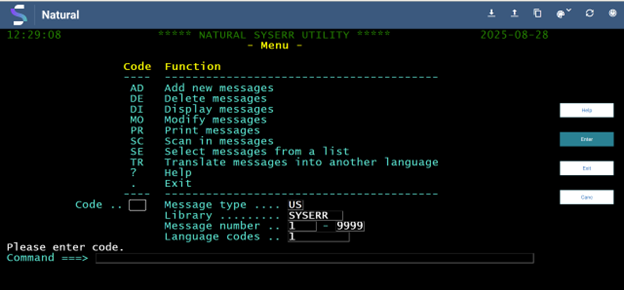
The main content of the screen is an emulation of the Natural screen.
It provides input and output fields.
On the right side of the screen, the current screen's PF keys are displayed as buttons.
Additionally, each button expands a tooltip that displays the alternative command.
The top menu shows the following buttons (right to left):
Closes the current session with Natural
Redirects the web application to the login screen
Refresh
Synchronizes the web application content based on the latest state of the Natural
session
Theme
Optional look-and-feel flavors to adapt the UI
Copy rectangle
Pressing the copy rectangle button changes the current web application window to a
new mode in which you can select a rectangular area on the screen. After selecting
the rectangle, its contents are copied to the clipboard, and you can paste them
anywhere.
To exit copy rectangle mode, press the copy rectangle button again.
File upload
Indicates that the file upload is in progress. Pressing the button will show the
progress of the upload.
File download
Indicates that the file download is in progress. Pressing the button will show the
progress of the download.