
This document describes all the object types accessible with Natural ISPF and gives examples of some typical functions that can be executed on them.
It covers the following topics:
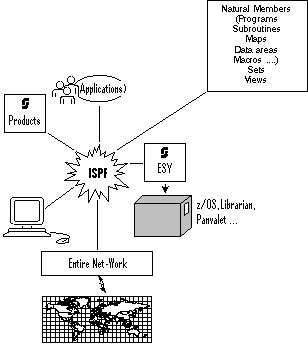
Natural Members:
Natural Members: All types of Natural members (programs, subroutines, maps, data
areas, help routines, macros etc.) can be listed, displayed and edited using Natural
ISPF. Where the Software AG Editor delivered with Natural ISPF is used, all advanced
Editor features are available, including the ability to issue Natural-specific
commands such as STOW, CAT,
RUN, CHECK,
STRUCT.
Among other features that can substantially enhance your work with Natural are the Macro Facility, Versioning, and the User Workpool. These are all described in more detail later in this document.
The following is an example of using the User Workpool while editing a Natural program. You can direct the output of a Natural program to the User Workpool. Running the Natural edit session and the workpool session simultaneously on your screen in split-screen mode, you can edit the program, and immediately see the result of your changes in the output:
EDIT-NAT:SYSISPE(EXW1)-Program->Report-Free-43K ----------- >>> Source EXW1 run
 COMMAND===>                                                    SCROLL===> CSR
****** ****************************** top of data *****************************
000010 * DEMO: WORKPOOL
000020 *
000030 DEFINE PRINTER(1) OUTPUT 'WORKPOOL'
000040 *
000050 READ (20) AUTOMOBILES BY MAKE STARTING FROM 'F'
000060    DISPLAY(1) MAKE COLOR MODEL HORSEPOWER
000070             NUMBER-OF-CYLINDERS
000080 END
BROWSE-OUT:EXW1/TYPE=REPORT-1 --------------------------------- Columns 001 076
 COMMAND===>                                                    SCROLL===> CSR
** ******************************** top of list *******************************
   Page      1                                                  93-12-17  10:05

        MAKE        COLOR           MODEL         HORSE NR
                                                  POWER CYL
   -------------- ---------- -------------------- ----- ---

   FERRARI        BLUE       365 GTB/4             350    6
   FERRARI        WHITE      365 GTB/4             350    6
 Enter-PF1---PF2---PF3---PF4---PF5---PF6---PF7---PF8---PF9---PF10--PF11--PF12---
Help Split End Suspe Rfind Rchan Up Down Swap Left Right :s |
Natural programming thus becomes much faster, more convenient, and more efficient, increasing productivity.
Sets:
If you have used Predict cross referencing to create sets for a Natural library,
Natural ISPF allows you to list sets and work on the members in a specified set. The
Predict cross-reference menu can be called directly from Natural ISPF: there is no
need to leave your working environment to define sets.
Views:
Natural views defined in your environment can be listed, view definitions can be
displayed, and field contents can be queried from the data base. Using Natural ISPF's
multi-session and split-screens capabilities, coupled with the comfortable active help
windows, this facility allows fast access to data without extra programming, even
without interrupting the edit session.
The following example shows two Natural ISPF sessions in split-screen mode: the
session in the top half of the screen contains a Natural edit session. The session in
the bottom half of the screen (partly covered by the pop-up windows) shows a list of
views. One view has been selected for a query of the database
(B line command). In the resulting pop-up window,
criteria such as start and end values, as well as total records for the database query
can be specified. The larger window is then displayed, offering the fields of the view
which can be selected for inclusion in the query:
EDIT-NAT:SYSISPE(EXW1)-Program->Report-Free-42K --------------- Columns 001 072
 COMMAND===>                                                    SCROLL===> CSR
****** ****************************** top of data *****************************
000010 * DEMO: WORKPOOL
000020 *
000030 DEFINE PRINTER(1) OUTPUT 'WORKPOOL'
000040 *
000050 READ (20) AUTOMOBILES BY MAKE STARTING FROM 'F'
000060    D +-----------------------------------------------+
000070      ! Select fields:                                !
000080 END  !                                               !
LIST-VIW:A* ! _ 1   CAR-DESCRIPTION                         ! - Columns 034 050
 COMM +---- ! X 2 D MAKE                             A 14.0 !-----------------+
   VI ! BRO ! X 2 D MODEL                            A 20.0 !                 !
 b AU ! Vie ! _ 2 D BODY-TYPE                        A 15.0 !                 !
   AU ! Rec !  2 D NUMBER-OF-CYLINDERS              N 2.0  !                 !
** ** ! Sta ! X 2 D HORSEPOWER                       N 3.0  !                 !
      ! End ! _ 2   PISTON-DISPLACEMENT              N 5.0  !                 !
      ! Max ! _ 1   CAR-DETAIL                              !                 !
      ! Pas ! _ 2   WEIGHT                           N 5.0  !                 !
      +---- ! X 2 D COLOR                            A 10.0 !-----------------+
            ! Entr-PF3--PF7--PF8--                          !
Enter-PF1-- ! Down End  Top  Down                           !F10--PF11--PF12---
Help +-----------------------------------------------+eft Right :s |
When the fields have been selected as shown in the above example screen, the result of the query in the bottom half of the screen looks as follows:
EDIT-NAT:SYSISPE(EXW1)-Program->Report-Free-42K --------------- Columns 001 072
 COMMAND===>                                                    SCROLL===> CSR
****** ****************************** top of data *****************************
000010 * DEMO: WORKPOOL
000020 *
000030 DEFINE PRINTER(1) OUTPUT 'WORKPOOL'
000040 *
000050 READ (20) AUTOMOBILES BY MAKE STARTING FROM 'F'
000060    DISPLAY(1) MAKE COLOR MODEL HORSEPOWER
000070             NUMBER-OF-CYLINDERS
000080 END
BROWSE-VIW:AUTOMOBILES -------------------------- Row 0 of 20 - Columns 016 052
 COMMAND===>                                                    SCROLL===> CSR
   MAKE           MODEL                HORSE COLOR
** ******************** top of list *******************
   FERRARI        365 GTB/4             350  BLUE
   FERRARI        365 GTB/4             350  WHITE
   FERRARI        DINO 246 GT           193  WHITE
   FERRARI        DINO 246 GT           193  WHITE
   FERRARI        365 GTB/4             350  WHITE
   FERRARI        DINO 246 GT           193  BLACK
   FERRARI        DINO 246 GT           193  BLACK
Enter-PF1---PF2---PF3---PF4---PF5---PF6---PF7---PF8---PF9---PF10--PF11--PF12---
Help Split End Suspe Rfind Rchan Up Down Swap Left Right :s |
Additionally, when displaying a view definition, a special
GENERATE command is available that automatically
generates data definition statements for a Natural program source.
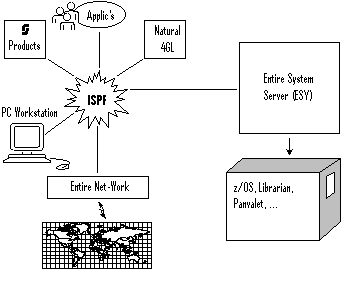
If Entire System Server is installed at your site, Natural ISPF provides access to a range of operating-specific objects, as well as to objects held by other data management systems. An overview of object types and available functions follows below.
Maintaining data sets on any supported operating system includes the following functions:
Allocate data sets;
List data sets;
Copy data sets across operating systems;
Rename data sets;
Delete data sets;
Display data set information.
Edit sequential data sets;
Browse sequential data sets;
Print sequential data sets
Compress data sets (MVS only);
Catalog/uncatalog data sets (MVS only).
Individual members are selectable for further maintenance from a list of data sets.
Natural ISPF provides facilities to access MVS PDS members. Available functions include the following:
List members in a data set according to selection criteria such as prefix or character string;
Edit, browse, rename, print, delete a member;
Copy a member to a different library; the target library can be of a different type and/or reside on another operating system;
Submit job control members, check the status of a submitted job and display status information every time you invoke another system screen (for example, you are given the name of the executing step and CPU consumption, and you are notified when the submitted job is in the output queue);
Rapid editing through the use of inline macros and the INCLUDE-MACRO
statement, as well as use of a macro model when starting an edit session with a
member. See the subsection on the Macro Facility in the section User
Applications.
Retrieve previous versions of edited members. When the user saves a member, this version is stored and kept for later retrieval even after the object is edited and saved again. See the subsection on Versioning in the section General Features.
Operating system-specific administrative and monitoring functions are available in the following areas:
Display of active jobs: the jobs can be listed according to the name and type selection criteria. The display is refreshed everytime Enter is pressed, and in-memory jobs appear highlighted;
Display the console screen: all console lines or only those waiting for an operator
reply (WTOR) are displayed. The console screen is refreshed every time
Enter is pressed. The authorized user can issue operator commands from the console
screen;
Issue operator commands; this can even be done for different CPUs and across different operating systems if Entire Net-Work is installed.
Display of the system log (IBM operating systems);
Display of system unit information at MVS sites. Users at MVS sites can also
display ENQUEUE information and make use of IDCAMS services using
Natural ISPF menu options.
The job information facility provides a view of job output data selectable by job name, number and type, as well as queue and spool file type. Alternatively, the required output data can be selected from a list of jobs generated using selection criteria. The user can browse spool files, hold and release them, print them or purge them from the job queue.
Natural ISPF provides full transparency to these source management systems. All benefits of integration into the Natural ISPF environment are available, including use of the macro facility.
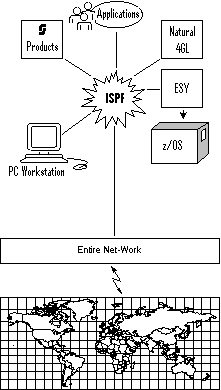
With Software AG's transport service Entire Net-Work, Natural ISPF can serve multi-processor environments. From a single location and using the same user interface, you can access and manipulate data irrespective of its physical location or operating environment. All data stored anywhere in the computer network looks as if it is available locally. The computer on which the data resides is simply identified by a unique node number.
The following example shows you how you can select the computer in your network on which data you wish to access resides, and how you can perform a cross-computer copy operation irrespective of the underlying operating system.
The screen below shows the entry screen of the Natural ISPF PDS member maintenance
facility. Imagine that you know the name of the data set you wish to access
(MBE.COMN.SOURCE), and that the name of the required member starts with
ISP. However, you are not sure on which machine within your network the data set resides.
In order to find the data, you specify the data set name and the known member prefix
followed by an asterisk (ISP*) in the appropriate fields. You then type a
question mark in the Node field:
------------------------- PDS OBJECTS - ENTRY PANEL ---------------------------
COMMAND ===>


   Data Set Name ===> MBE.COMN.SOURCE
   Member        ===> ISP*
   Volume        ===>                         ( If not catalogued     )
   Password      ===>                         ( If password protected )
   Scan for      ===>
   Edit macro    ===>
   Node          ===> ?


Enter-PF1---PF2---PF3---PF4---PF5---PF6---PF7---PF8---PF9---PF10--PF11--PF12---
Help Split End Suspe Rfind Rchan Up Down Swap Left Right :s |
If you now press Enter, a window opens with information concerning all computers in the
network. You can select any machine that is active. For example, you can see that the
Madrid machine has node number 91 and is available. This machine is selected
by entering 2 in the Select field:
------------------------- PDS OBJECTS - ENTRY PANEL ---------------------------
COMMAND ===>

        +-----------------------------------------------------+
   Data ! Please select                                       !
   Memb !    Node Status   System Info                        !
   Volu !  1 148  ACTIVE   DAEF MVS/ESA  The famous F-machine !ed     )
   Pass !  2 091  ACTIVE   IPO1 MVS/XA   SAG Madrid           !tected )
   Scan !  3 031  ACTIVE        IPO1 MVS/XA   SAG Rome           !
   Edit !    033  inactive               SP3 darmstadt        !
   Node !    193  inactive               SAG Düsseldorf     !
        !    066  inactive               SAG München          !
        !    067  inactive               ZAE Alsbach          !
        !    138  inactive               SAGUK Derby          !
        !  9 206  ACTIVE   SHST MVS/ESA  SAGNA Reston         !
        !                                                     !
        !  Select ==> 2                                       !
        +-----------------------------------------------------+


Enter-PF1---PF2---PF3---PF4---PF5---PF6---PF7---PF8---PF9---PF10--PF11--PF12---
Help Split End Suspe Rfind Rchan Up Down Swap Left Right :s |
Natural ISPF now searches the Madrid machine, and generates a list of all members starting with ISP in the specified data set.
The required member can now be selected for maintenance operations. Imagine you wish to
copy the member from the data set to a MVS data set. The MVS machine has node number
31 (see the screen above). You select the member with the
CP line command (for COPY). This
opens a window with all available object types to which the member can be copied (select
PDS):
 LIST-PDS:MBE.COMN.SOURCE(ISP*) -------------------- Row 0 of 1 - Columns 010 076
 COMMAND===>                                                    SCROLL===> CSR
   MEMBER   +--------------------------+IFIED TIME  SIZE   INIT   TID   ID
** ******** ! ENTER OBJECT             !of list *******************************
cp ISPCON   !   1 N   NATURAL object   !05/06 17:21    150    144       MBE
** ******** !   2 P   PDS member       ! of list ******************************
            !   3 D   Data set         !
            !   4 MEM PDS member     !
            !   5 D   Data set       !
            !   6 MEM  PDS member      !
            !   7 MEM PDS member      !
            !  Select ==> _7_          !
            +--------------------------+


Enter-PF1---PF2---PF3---PF4---PF5---PF6---PF7---PF8---PF9---PF10--PF11--PF12---
Help Split End Suspe Rfind Rchan Up Down Swap Left Right :s |
Selecting Option 7 from the list, Natural ISPF presents you with a prompt window in which you can enter the PDS characteristics of the member to be copied by overtyping the preset values in the input fields. Note especially that Natural ISPF assumes by default that copy operations are local. You must therefore specify Node Number 31 for the target MVS machine:
 LIST-PDS:MBE.COMN.SOURCE(ISP*) ------------------  Row 0 of 1 - Columns 010 076
 COMMAND===>                                                    SCROLL===> CSR
 +----------------------------------------------------------------------------+
 ! COPY-PDS:MBE.COMN.SOURCE(ISPCON)                                           !
 ! To                                                                         !
 !  Library   MBE.COMN.SOURCE                                                 !
 !  Element   ISPCON                                                          !
 !  Type                                                                      !
 !  Version                                                                   !
 !  Password                                                                  !
 !  Node     31                                                               !
 ! Replace   NO                                                               !
 ! Enter to perform, PF3 to exit.                                             !
 +----------------------------------------------------------------------------+


Enter-PF1---PF2---PF3---PF4---PF5---PF6---PF7---PF8---PF9---PF10--PF11--PF12---
Help Split End Suspe Rfind Rchan Up Down Swap Left Right :s |
If Software AG's Entire Connection is installed at your site, you can integrate the PC/Workstation environment in Natural ISPF. This means you can download any Natural ISPF object (Natural program or PDS member, etc.) as a PC file, and any PC file can be uploaded and stored as a Natural ISPF object.
This is done using simple IMPORT or
EXPORT commands from your Natural ISPF session running on
your PC terminal emulation with Entire Connection active.
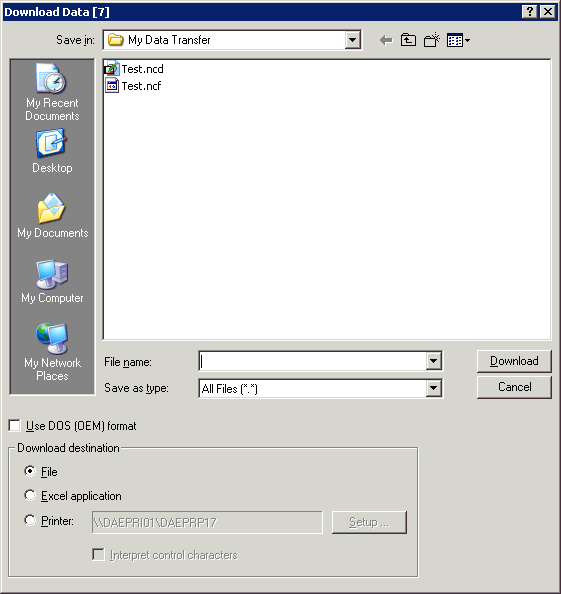
The following example shows a Natural ISPF browse session with a Natural program. The
EXPORT PC command causes Entire Connection to prompt you for
the name of the file under which the program is to be stored on the PC or workstation:
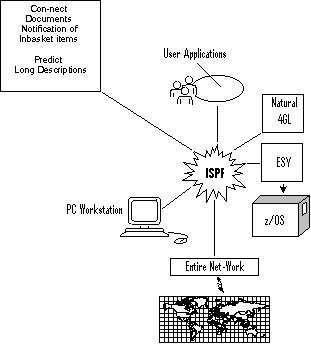
Objects from other Software AG products can be integrated in Natural ISPF. The interfaces to Software AG's Office System Con-nect and Data Repository Predict provide the following functions:
EXPORT any Natural ISPF object (Natural program or PDS
member, etc.) to Con-nect and store it as a document and/or send it as a memo to other
Con-nect users.
IMPORT a Con-nect document to Natural ISPF and store it as
any Natural ISPF object.
LIST Con-nect documents,
BROWSE, EDIT,
DELETE and PRINT them, display
information about a document. The advantages of doing this from Natural ISPF are:
No need to leave the working environment to handle Con-nect documents
Full Editor functionality
Use of Natural ISPF features such as multi-session operations, split-screen, flexible layout of lists
Natural ISPF provides for a procedure that informs you with a message whenever a new item in your Con-nect inbasket is detected: there is no need to keep leaving the Natural ISPF environment to check.
Predict long descriptions can be displayed and edited directly from Natural ISPF, again using all the advantages of the Editor and Natural ISPF features. The use of Predict sets for Natural objects is described in the section on Natural objects above.
The following example screen shows a Natural ISPF session in split-screen mode. The top session contains a list of documents in a Con-nect folder, the bottom session contains an edit session with one of the listed documents:
LIST-DOC:MBE(*)/FOLDER=WORK ---------------------- Row 0 of 2 - Columns 045 076
 COMMAND===>                                                    SCROLL===> CSR
   Document                         Int.Number          Created    File
** ******************************** top of list *******************************
   Editor 134                       0001484258          1989-11-24 ISPF
   Textfile                         0006899084          1993-05-06 ISPF
** ****************************** bottom of list ******************************


EDIT-DOC:MBE(Textfile) ---------------------------------------- Columns 001 072
 COMMAND===>                                                    SCROLL===> CSR
****** ****************************** top of data *****************************
000001 This is a text file used to test the NSPF interface to CON-NECT
****** **************************** bottom of data ****************************


Enter-PF1---PF2---PF3---PF4---PF5---PF6---PF7---PF8---PF9---PF10--PF11--PF12---
Help Split End Suspe Rfind Rchan Up Down Swap Left Right :s |
Parallel edit sessions with several Con-nect documents are possible, allowing you to perform operations such as cross-session copying.
The following example screen shows a Natural ISPF session in split-screen mode. The top session contains an edit session with the long description of the Natural program displayed in edit mode in the bottom session.
EDIT-PRD:DEMO(DEMOREP) ---------------------------------------- Columns 001 072
 COMMAND===>                                                    SCROLL===> CSR
****** ****************************** top of data *****************************
000001 Ref-Number: N-4711
000002 Function  : Report of Automobiles
000003 Descriptor: MAKE
000004 Standard Copycodes to be used:
000005             EXSTARTC
000006             EXEND--C
****** **************************** bottom of data ****************************
EDIT-NAT:DEMO(DEMOREP)-Program->Struct-Free-42K --------------- Columns 001 072
 COMMAND===>                                                    SCROLL===> CSR
000100 *
000110 DEFINE DATA LOCAL
000120 1 AUTOMOBILES-VIEW  VIEW OF AUTOMOBILES
000130   2 CAR-DESCRIPTION
000140     3 MAKE
000150     3 MODEL
000160     3 BODY-TYPE
000170     3 NUMBER-OF-CYLINDERS
000180     3 HORSEPOWER
000190     3 PISTON-DISPLACEMENT
Enter-PF1---PF2---PF3---PF4---PF5---PF6---PF7---PF8---PF9---PF10--PF11--PF12---
Help Split End Suspe Rfind Rchan Up Down Swap Left Right :s |
Again, several edit sessions with programs and their descriptions can be active at the same time, allowing easy cross-checking, editing and cross-session operations.