
Adabas OIDC Authentication provides Single Sign-On (SSO) capabilities for Adabas command-line utilities using industry standard OpenID Connect protocol. It enables users to authenticate with a central Identity Provider rather than relying on operating system credentials.
It implements the OAuth 2.0 Device Authorization Grant to provide secure authentication for command-line utilities running in terminal environments without graphical user interfaces.
This feature includes the following functionality:
- Device Authorization Flow
Users authenticate via a browser on any device by visiting a URL and entering a short code displayed in the terminal.
- Token-Based Authentication
Cryptographically signed JWT tokens prove user identity without transmitting passwords.
- Token Caching and Refresh
Tokens are securely cached locally and automatically refreshed, minimizing re-authentication prompts.
- Multi-IdP Support
Compatible with any OpenID Connect compliant Identity Provider including Keycloak, Google Cloud Platform, and Microsoft Entra ID (Azure AD).
OpenID Connect (OIDC) is an authentication layer built on top of OAuth 2.0. It provides a standardized way to verify user identity and obtain basic profile information. Unlike traditional username/password authentication, OIDC delegates authentication to a trusted Identity Provider (IdP) that issues cryptographically signed tokens.
Traditional Adabas utilities identify users via operating system calls. While this works well in conventional on-premises deployments, modern environments present challenges. For example, in container-based environments, utilities may run under a generic service account.
OIDC provides a standardized, secure, and auditable way to establish user identity regardless of the execution environment.
It offers the following benefits:
- Centralized identity management
User accounts are managed in one place.
- Enhanced security
Strong authentication methods (MFA, biometrics) are enforced by the IdP.
- Auditable access
All authentication events are logged at the IdP for compliance.
- Seamless user experience
Authenticate once, access all connected databases.
- Revocation capability
Disabling a user at the IdP immediately revokes access everywhere.
- Standards based
OpenID Connect is an industry standard supported by all major IdPs.
The Device Authorization Grant is specifically designed for devices with limited input capabilities, like running CLI tools in terminals or SSH sessions where opening a browser window is not possible.
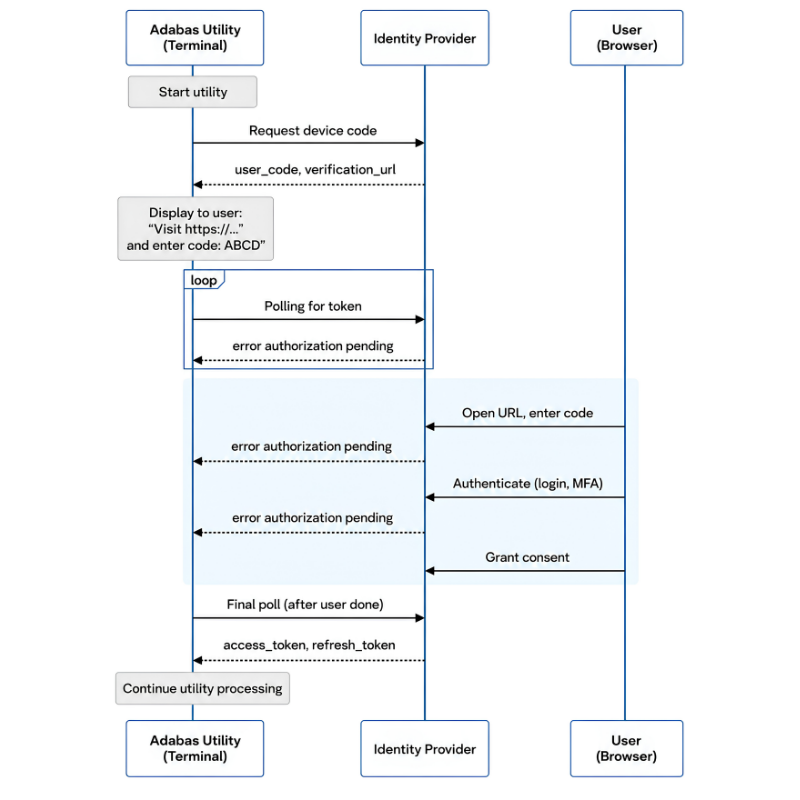
Adabas utilities read the database's OIDC configuration when accessing a database with OIDC enabled. The utility connects to the configured Identity Provider and requests a user code. The utility displays a verification URL and user code to the user. The user opens the URL in a browser on any device, enters the user code, and authenticates with the IdP.
The utility polls the IdP's token endpoint until the user completes authentication. Upon successful authentication and consent grant, the IdP issues ID, access, and refresh tokens. The utility continues processing with the principal claim configured and returned by the IdP.
When authentication is required, the utility displays instructions:
============================================================================
ADABAS AUTHENTICATION REQUIRED
============================================================================

To sign in, open a browser and visit:
https://login.example.com/device?user_code=ABCD-EFGH

Or visit: https://login.example.com/device
And enter the code: ABCD-EFGH

Waiting for authentication (expires in 600 seconds)...
============================================================================
If the libqrencode library is installed, a QR code is also displayed for easy scanning with a mobile device.
| Token | Purpose | Typical Lifetime |
|---|---|---|
| Access Token | Grants access to protected resources; contains user claims | 5–60 minutes |
| Refresh Token | Obtains new access tokens without re-authentication | Hours to days |
| ID Token | Contains identity claims about the authenticated user | Same as access token |
Tokens are cached locally to avoid re-authentication on every utility invocation:
Linux: $HOME/.adabas/oidc/tokens.json
Windows: %USERPROFILE%\.adabas\oidc\tokens.json
The token directory path and file are created with restricted permissions (directory mode 0700 and file 0600 on Linux) to prevent unauthorized access.
When a utility starts:
It checks for a cached token.
If valid, the cached token is used.
If expired, it attempts to refresh using the refresh token.
If all attempts have failed, the device authorization flow is initiated.
OIDC authentication is configured per database in the DBnnn.INI file. The configuration is stored in the [OIDC] section within the [DB_PARAMETER] section.
| Parameter | Required | Default | Description |
|---|---|---|---|
| ENABLED | No | NO | Enable or disable OIDC authentication (YES or NO) |
| ISSUER | Yes | — | Identity Provider issuer URL (used for endpoint discovery) |
| CLIENT_ID | Yes | — | OAuth 2.0 client identifier registered with the IdP |
| CLIENT_SECRET | No | — | OAuth 2.0 client secret (required by some IdPs like Google) |
| SCOPES | No | openid profile email | Space-separated OAuth scopes to request |
| PRINCIPAL_CLAIM | No | preferred_username | JWT claim to use as the user principal (sub, preferred_username, or email) |
A OIDC configuration for Microsoft Entra ID could look like this:
[DB_PARAMETER]

   [OIDC]
      ENABLED = YES
      ISSUER = https://login.microsoftonline.com/your-tenant-id/v2.0
      CLIENT_ID = your-application-client-id
      SCOPES = "openid profile email offline_access"
      PRINCIPAL_CLAIM = preferred_username
   [OIDC-END]

[DB_PARAMETER-END]
Before enabling OIDC authentication, ensure:
- Identity Provider Setup
You have registered an OAuth 2.0 application with your IdP configured for the Device Authorization Grant flow.
- Network Connectivity
The machine running Adabas utilities can reach the IdP's endpoints via HTTPS.
- Dependencies
The libcurl library is installed (required for HTTP communication).
Register your application with your chosen Identity Provider and obtain:
Client ID: The application identifier
Client Secret: (If required by your IdP)
Issuer URL: The IdP's base URL
Configure the application to support the Device Authorization Grant (also called "device code flow" or "TV and Limited Input Device" application type).
Use the ADAINI utility to add the OIDC configuration:
# Enable OIDC authentication
adaini dbid=nnn add topic=DB_PARAMETER topic=OIDC item=ENABLED=YES

 # Set the IdP issuer URL
 adaini dbid=nnn add topic=DB_PARAMETER topic=OIDC item=ISSUER=https://your-idp.example.com

 # Set the client ID
 adaini dbid=nnn add topic=DB_PARAMETER topic=OIDC item=CLIENT_ID=your-client-id

 # (Optional) Set client secret if required
 adaini dbid=nnn add topic=DB_PARAMETER topic=OIDC item=CLIENT_SECRET=your-client-secret

# (Optional) Set requested scopes
adaini dbid=nnn add topic=DB_PARAMETER topic=OIDC item=SCOPES="openid profile email"

# (Optional) Set principal claim
adaini dbid=nnn add topic=DB_PARAMETER topic=OIDC item=PRINCIPAL_CLAIM=preferred_username
Display the current OIDC configuration:
adaini dbid=nnn show topic=DB_PARAMETER topic=OIDC

ENABLED=YES
ISSUER=https://your-idp.example.com
CLIENT_ID=your-client-id
SCOPES=openid profile email
PRINCIPAL_CLAIM=preferred_username
Run for example the Adabas utility ADAREP that requires authentication. If OIDC is enabled and no valid cached token exists, you will see the authentication prompt:
adarep dbid=nnn summary

============================================================================
ADABAS AUTHENTICATION REQUIRED
============================================================================

To sign in, open a browser and visit:
https://your-idp.example.com/device?user_code=ABCD-EFGH

Or visit: https://your-idp.example.com/device
And enter the code: ABCD-EFGH

Waiting for authentication (expires in 600 seconds)...
============================================================================
Complete authentication in your browser, and the utility will continue execution.
On any OIDC related error the utility will report a OIDCFAIL error message containing further information.
Authentication not done within given time frame: Check the configured expiration time in the Identity Provider settings
Wrong user code: Ensure to enter the code as shown
IdP unreachable: Ensure the user's browser can reach the Identity Provider
Firewall blocking: Ensure outbound HTTPS (port 443) is allowed to the IdP
Proxy configutation: Set HTTP_PROXY / HTTPS_PROXY environment variables if required
SSL certificate issues: Ensure the system trusts the IdP's SSL certificate
Missing required parameters: Verify ISSUER and CLIENT_ID are configured
Invalid issuer URL: Ensure that the issuer URL does not have a trailing slash
Typo in configuration: Double check all parameter values
The token directory path and/or the token file permissions are too open. Ensure that the file path has restrictive permissions.
chmod 700 ~/.adabas
chmod 700 ~/.adabas/oidc
chmod 600 ~/.adabas/oidc/tokens.json
Authentication is required but the utility output is not connected to an interactive terminal. This occurs when the utility output is redirected to a file, piped to another command, or run in a non-interactive context (e.g., cron job, batch script, or background process).
Run the utility from an interactive command line first to complete the authentication process. This ensures the user has a valid token and/or refresh token cached locally. After successful authentication, repeat the non-interactive operation—it will use the cached token without requiring terminal interaction.
User explicitly denied consent: When prompted in the browser, the user clicked "Deny" or "Cancel" instead of granting consent. Re-initiate authentication and grant consent when prompted.
Wrong user authenticated: Verify that the correct user ID is used for authentication at the IdP URL. If another user received the authentication request (e.g., the URL was shared or opened on a different device), they may have denied the request. Ensure only the intended user completes the authentication flow.
Consent already denied: Some IdPs remember denied consent. Check the IdP's user settings to revoke previous denial decisions, or contact your IdP administrator.