This document covers the following topics:
 To select a target relational database (RDBMS):
Select the menu option from the menu .
The Define Target Definition window appears.
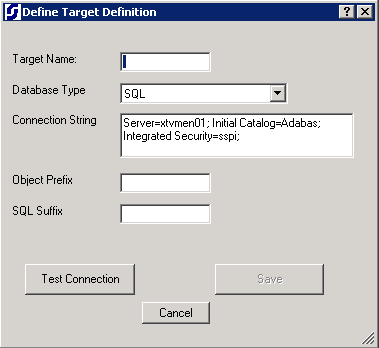
Fill in the fields on the Define Target Definition window as described in the following table:
| Field Name | Description | Required? |
|---|---|---|
| Target Name | Specify the name of the target database. This name must match the name of the RDBMS catalog. | Yes |
| Database Type | Click on the selection arrow to select any of the listed database types. | Yes |
| Connection String | Edit the connection string that appears, based on the type of database you have selected. For more information about connection strings, review the samples provided at http://www.connectionstrings.com. | Yes |
| Object Prefix | Specify the object prefix for the target database, if necessary. This prefix is case-sensitive and is required for Oracle and DB2 databases. | No |
| SQL Suffix | Specify the SQL suffix for the target database, if necessary. | No |
When all fields have been supplied as required, click the button to test the connection to the RDBMS.
If the test is successful, a checkmark appears between the and buttons. Continue with the next step.
If the test is unsuccessful, errors result and error messages appear. You will need to resolve the errors to proceed.
If the test is successful, click to link to the target RDBMS and display it in the middle column (Target Table) of the Data Mapping Tool main window.
The RDBMS is listed in the Target Table column and several work tables required for Data Mapping Tool processing are created and appear in the list.
To remove an RDBMS from the list in the Target
Tables column of the Data Mapping Tool main window:
Click on the RDBMS in the list that you want to remove.
Select the menu option from the menu or click the button.
The target RDBMS is removed from the list.
Note:
The RDBMS itself is not removed; it is removed only from the list
in the Target Table column.